A Cline rule is a markdown file in a .clinerules/ folder at your project root that Cline reads on every task, so you write an instruction once instead of repeating it in chat. Cline’s rules documentation treats that folder as the primary format: it combines the .md and .txt files inside, gives each file its own toggle, and lets a file scope itself to matching paths through YAML frontmatter. Cline also recognizes AGENTS.md, .cursorrules, and .windsurfrules.
A rule earns its context cost when it is specific and verifiable. “Keep functions small” expresses a preference. “Do not change the payment webhook unless the signature-verification test passes” names a path and evidence. Rules supply model context. The build must run the test and reject the change when it fails. That presence-versus-correctness gap is the same one behind why AI coding tools miss cross-cutting security rules.
Below: where rules live, a four-file starter folder you can copy, the glob syntax for paths, and the reasons a rule that looks right never fires.
What is a .clinerules file?
A .clinerules/ directory holds version-controlled project instructions for Cline. Keep one concern per .md or .txt file, such as authorization, testing, database changes, or secrets. A rule without frontmatter is always active. A conditional rule uses a paths array:
---
paths:
  - "supabase/migrations/**"
---

# RLS migrations

Any new or edited row-level-security policy needs a
test that logs in as a second account and confirms it
can't read the first account's row.
paths takes glob patterns. Five operators cover almost every rule you will write:
| Pattern | Matches | Example |
|---|---|---|
* | Any characters except / | supabase/migrations/*.sql, that one folder only |
** | Any characters including / | src/lib/auth/**, every file at any depth under it |
? | A single character | src/app/api/v?/**, matches v1 and v2 |
[abc] | Any one character inside the brackets | src/app/api/v[12]/**, v1 and v2 but not v3 |
{a,b} | Either pattern | packages/{web,api}/**, two packages in one rule |
Combine them when you need a narrow scope. Test files in two directories and nothing else is {src,packages}/**/*.test.ts.
Cline evaluates paths against file paths in the prompt, open or visible files, edited files, and pending operations. Any matching path activates the rule. A rule can therefore become active during a task when Cline reaches a protected file. Invalid YAML fails open and exposes the raw rule content, so test both matching and non-matching paths instead of assuming the frontmatter parsed.
Where Cline rules live
Three locations, and they behave differently. Cline’s rules documentation is the source for the paths below.
| Location | Applies to | What to know |
|---|---|---|
.clinerules/ folder at the project root | This project, committed to git | The primary format. One concern per .md or .txt file, each with its own toggle in the Rules panel. |
A single .clinerules file at the project root | This project | The original shape from Cline’s first rules release. One blob, no per-file toggles, and no longer the documented format. |
Global rules directory: ~/Documents/Cline/Rules on macOS, Linux, and WSL, Documents\Cline\Rules on Windows | Every project you open | Combined with workspace rules. The workspace rule wins when the two conflict. |
If you still have a single .clinerules file, split it. Copy each concern into its own file under .clinerules/, delete the original, and you get per-file toggles and the option to scope any of them with paths. Nothing about the wording of your instructions has to change.
Keep project-specific constraints in the workspace folder so they travel with the repo for everyone. Keep personal habits, like how you want commit messages written, in the global directory so you do not push them into a shared codebase.
Cline rules examples: a starter .clinerules/ folder
Four files. Numeric prefixes are optional in Cline and only affect how the folder sorts, but they make the set easier to read. Every rule below names a path and a command that either passes or fails.
.clinerules/01-secrets.md:
- Never echo an API key, a signing secret, or a
  service-role token into a chat response, a log line,
or a commit, even while debugging..clinerules/02-fragile-areas.md:
---
paths:
  - "src/lib/auth/**"
  - "supabase/migrations/**"
---

- `src/lib/auth/**`: don't change how a session is
  created or read without `pnpm test auth` passing first.
- `supabase/migrations/**`: any new or edited RLS policy
  needs a test that logs in as a second account and
confirms it can't read the first account's row..clinerules/03-payments.md:
---
paths:
  - "src/lib/payments/**"
  - "src/app/api/webhooks/**"
---

- Verify the webhook signature against the raw request
  body before parsing it. Never trust an amount, a price,
  or a plan name that came from the browser.
- Don't change a handler in these folders without
  `pnpm test payments` passing, including the test that
replays a webhook with a bad signature..clinerules/04-testing.md:
- Run `pnpm test` before saying a change is done, and
  paste the failing output instead of describing it.
Files 01 and 04 have no frontmatter, so they are always active. That is a real cost: an always-active rule sits in Cline’s instructions on every request for the life of the project, and Cline’s documentation warns that rules consume context tokens and to avoid pasting whole style guides. Files 02 and 03 cost nothing until a matching path enters the task. That contrast is the entire argument for using paths. Keep the always-active files to a few lines and put everything else behind a path condition.
For more starting points, Cline’s community repo, cline/clinerules, collects rules, workflows, and AGENTS.md files, and surfaces them in the Prompts Library inside the extension.
Create your first rule
Three steps, and the third is the one people skip.
- 01 Run /newrule in Cline to have it write the file interactively, or add a .md file to .clinerules/ yourself with a name that says what it guards.
- 02 Open the Rules panel and confirm the new file is detected and toggled on.
- 03 Open or mention a file that matches your paths array, then confirm Cline reports the conditional rule as active before you trust it to fire.
Rules are ordinary files in your repo, so Cline can read and edit its own. Cline’s writeup on version-controlled rules makes that the point of the format. The practical use: ask for a rule right after Cline makes the mistake you want to prevent, while the bad output is still on screen, then read the file it writes before you commit it.
Cline rules vs workflows vs hooks vs CI
These mechanisms solve different parts of the task. Choosing the enforcement layer first prevents a .clinerules file from carrying a promise it cannot keep.
| Mechanism | Use it for | What it can enforce |
|---|---|---|
| Conditional rule | Context that should appear when matching files enter the task | Nothing by itself; the model can still ignore or misapply it |
| Custom workflow | An ordered, on-demand process invoked with a slash command | The model follows the requested sequence, subject to its tools and permissions |
| Cline hook | Deterministic logic before or after a tool call | A PreToolUse hook can cancel an operation |
| CI job or server control | Tests, builds, authorization, and release policy | It can reject code, a deploy, or an unauthorized runtime request |
A rule fits a payment webhook when the agent should see the signature-verification requirement whenever that path enters context. Use a workflow for an ordered release rehearsal. A hook can reject a tool operation based on deterministic project logic, and CI remains the final code-change gate.
Keep style guidance in a short always-active rule only when it helps every task. Use conditional rules for authorization, payment, migration, and secret-handling paths where the instruction becomes relevant with a particular file.
The one rule that would have caught 10 of 21 apps we audited
That priority order has a number attached. Client-trusts-itself, the server accepting whatever the browser or the request body asserts about who a user is, showed up in 10 of the 21 third-party apps AxonBuild audited in June and July 2026, each finding verified against the running code, not pattern-matched.
The role column a signup could set for itself
The clearest version, one I found in a food-delivery marketplace, let a brand-new signup turn itself into a seller, a driver, or an admin with one API call. Account type lived in a role column on the user’s own row; the server checked that the row belonged to the requester and stopped there. I never found a check for whether role was a field that request was allowed to touch, and no trigger locked the column once an account existed. A customer account and a seller account differed by one value the customer could set for themselves.
That is the shape a rule catches and a demo never surfaces, because every screen still renders and every request still returns 200. A rule scoped to the profile and permissions paths, asking for a test proving a non-admin account can’t set its own role to admin, would have caught this the day it was written, provided somebody wrote that test and ran it; the rule is the reminder to do so, and the test is what catches the defect. The same client-trusts-itself pattern, one field the browser gets to decide, is also how a vibe-coded checkout leaks money.
A rule that guards the one column a signup could turn into an admin account is worth more than ten that keep your imports tidy.
Use conditional rules and toggles together
Cline’s Rules panel gives every detected rule a toggle. A conditional rule must be toggled on and match a current path before it activates. This gives you two controls: disable a rule entirely when it is irrelevant, or leave it enabled and let paths decide when it enters context. Cline shows a notification when a conditional rule activates.
The same rule can be useful in both Plan and Act modes. Plan mode cannot modify files or execute commands, but a path-specific rule can shape the proposed approach and required tests. Act mode can then edit files and run those tests. Which paths count as fragile in the first place gets decided before any code gets touched, as a decision about the app, not something a rules file can prove for you.
Why your Cline rule isn’t firing
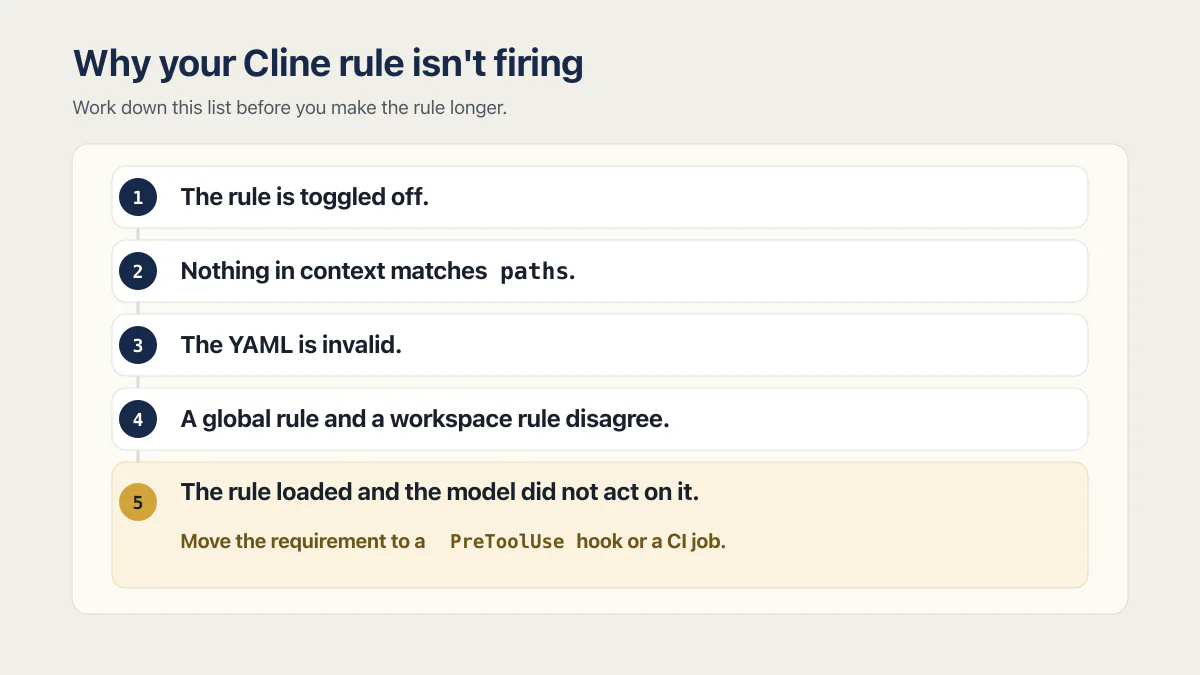
Work down this list before you make the rule longer. Longer wording fixes none of the first four.
- The rule is toggled off. Every detected rule has a toggle in the Rules panel. A conditional rule needs the toggle on and a path match.
- Nothing in context matches
paths. Context means paths you mention in your message, open and visible files, files Cline has edited, and pending operations. A rule scoped tosupabase/migrations/**stays quiet while you are looking at a component. - The YAML is invalid. Cline fails open. The rule still loads, but the frontmatter arrives as raw text instead of scoping anything. Seeing
paths:in Cline’s output is the tell, and the usual cause is a missing---delimiter or bad indentation. - A global rule and a workspace rule disagree. Cline combines both sets and the workspace rule wins on conflict, so a global rule in
~/Documents/Cline/Rulesquietly loses to a project file that says something different. - The rule loaded and the model did not act on it. This is the common one. A rule is context, not a gate. Move the requirement to a
PreToolUsehook or a CI job and stop editing the wording.
The reverse problem, a rule firing when you did not expect it, is usually a ** reaching deeper than you meant, or a path you mentioned in passing counting as context.
Common questions about Cline rules
How do I use Cline rules?
Create a .clinerules/ directory at the project root and add a focused .md or .txt file. For a conditional rule, add a paths array in YAML frontmatter. Confirm the rule is enabled in the Rules panel, then mention or open a matching file and verify that Cline reports the conditional rule as active.
Where do Cline rules live?
Workspace rules live in a .clinerules/ folder at your project root and are committed with the code. Global rules live in ~/Documents/Cline/Rules on macOS, Linux, and WSL, and in Documents\Cline\Rules on Windows, and apply to every project you open. Cline combines both sets, and the workspace rule takes precedence when the two conflict.
Should Cline rules live in one file or a folder?
Use the .clinerules/ directory. Cline’s current documentation names the folder as the primary project format and combines the .md and .txt files inside, while the older single .clinerules file is one undivided blob with no per-file toggle. To move, rename the original file first (for example to clinerules-old.md, since one path cannot be both a file and a folder), create the .clinerules/ folder, copy each concern into its own file inside it, check the folder loads, then delete the renamed original; the wording of your instructions does not need to change.
How do I create a Cline rule?
Run /newrule in Cline and answer its prompts, or add a .md or .txt file to .clinerules/ yourself. Then open the Rules panel to confirm the file is detected and enabled, and open a file matching your paths array to confirm Cline reports the rule as active. Numeric filename prefixes like 01-secrets.md are optional and only affect ordering.
What is the difference between a Cline rule and a workflow?
A rule is standing context: it enters the prompt on every task, or on every task touching the paths you name, without you asking. A workflow is an ordered procedure you invoke on demand with a slash command. Use a rule for a constraint that should always be visible, and a workflow for a sequence you run occasionally, such as a release rehearsal.
Why is my Cline rule not working?
Check four things in order: the rule is toggled on in the Rules panel; a file matching its paths array is actually in context, which includes mentioned paths, open files, edited files, and pending operations; the YAML frontmatter parses, because invalid YAML fails open and dumps raw text into the prompt; and no global rule is conflicting, since the workspace rule wins. If all four are clean, the rule loaded and the model simply did not follow it, which is a job for a hook or a CI check rather than longer wording.
How do I scope a Cline rule to only test files?
Put a glob in the paths array: **/*.test.ts matches every TypeScript test file at any depth, and {src,packages}/**/*.test.ts limits it to two directories. * stops at a /, ** crosses directories, ? matches one character, [abc] matches one character from the set, and {a,b} matches either pattern.
Do Cline rules use up context tokens?
Yes. An always-active rule is part of Cline’s instructions on every request for the life of the project, and Cline’s documentation warns that rules consume context tokens and to keep them short rather than pasting entire style guides. A conditional rule with a paths array costs nothing until a matching file enters the task, which is the reason to scope anything that is not useful on every job.
Can Cline write its own rules?
Yes. Rules are plain files in your repository, so Cline can read and edit them like any other file. The practical use is to ask for a rule right after Cline makes a mistake, while the bad output is still on screen, then read and commit the file it writes.
Does Cline read rules written for other agents?
Cline currently recognizes its .clinerules/ directory plus .cursorrules, .windsurfrules, and AGENTS.md. All detected types appear in the Rules panel. Workspace rules and global rules are combined, with workspace rules taking precedence when they conflict. Roo Code, the Cline fork, is not on that list: it reads its own .roo/rules/ directory, with a .roorules file as the fallback. How rules files across tools map onto each other has a page of its own.
The mechanics above are Cline-specific: the paths frontmatter, the toggle popover, the Plan/Act split. A CLAUDE.md and a .cursor/rules set solve the same problem in different syntax, while an AGENTS.md file attempts one format across tools. What makes a rule worth its context cost stays concrete: it names a file and a command that either passes or fails. Rules reduce one source of change risk; whether an AI-built app is ready for people to rely on still depends on what the working app and its critical paths actually do.
If you have a working app built with these tools and need it ready for real customers, this is what we do.
Built it with AI. Now it has to hold up for real customers.
The Production Hardening Sprint takes the app you already have and builds the production foundation underneath it. Authentication and access rules, payments that stay consistent, error handling, monitoring, backups, automated tests and a documented handover. Our engineers work inside your existing codebase for ten working days. All 123 deliverables are included, and you get the evidence for each one.
See the Production Hardening Sprint →  $2,500 fixed price · 10 working days · One codebase