The upload finished on Tuesday. On Thursday the version page in App Store Connect still shows an empty Build section, no add button, and no explanation. The answer sits between those two facts, usually on a screen other than the one you are staring at.
A build that will not appear in App Store Connect is almost always one of four situations: nothing was uploaded, the upload is still processing, the build exists but is not eligible for the version you are on, or it is attached and testers still cannot see it. Each one lives on a different screen.
This page starts in the failure state. If you have not sent anything to Apple yet, the full TestFlight submission path is the walkthrough to follow instead. If you are on Windows or Linux, the upload routes for a Windows or Linux machine are a subject of their own. This page assumes an upload already ran, or that somebody said it did.
Every screen name, button label, status name and required role below was read from Apple’s own App Store Connect documentation on 16 August 2026 and is written the way Apple writes it. No App Store Connect account was operated to produce this article.
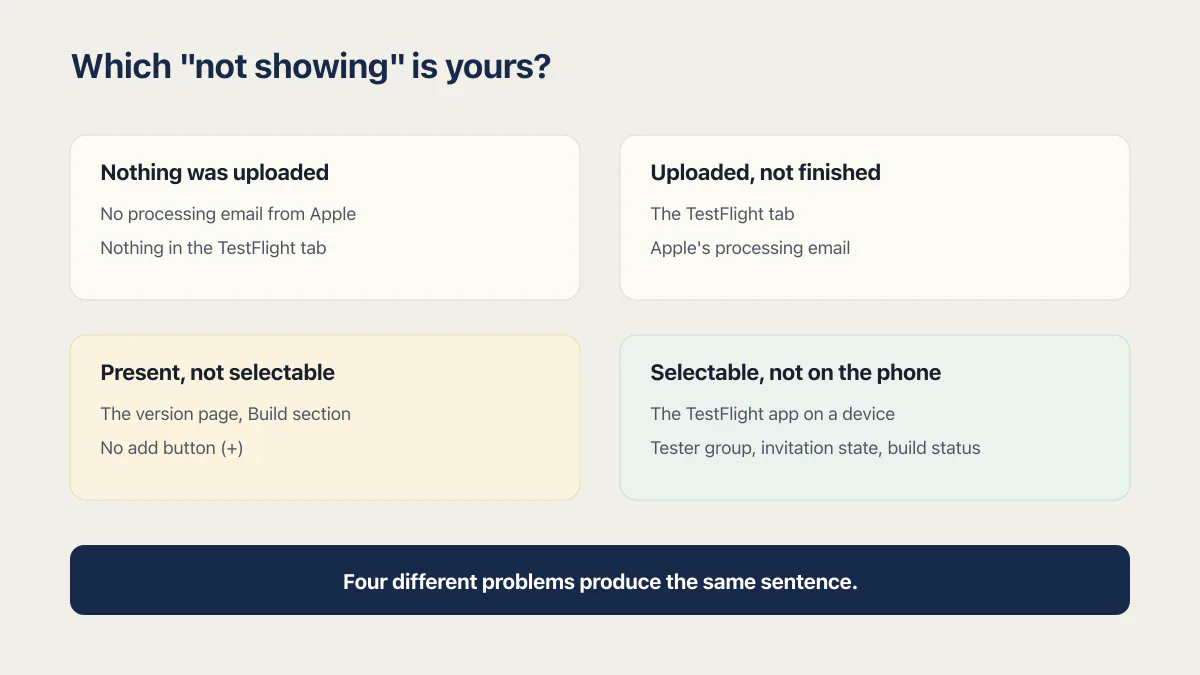
Which “not showing” is yours
Four different problems produce the same sentence. They sit on three different screens plus a phone, and the evidence that settles each one is different. That is why single-cause answers keep missing: each is correct about one state and silent about the other three.
| The state | Where you are looking | What you would see if this is you | What settles it |
|---|---|---|---|
| Nothing was uploaded | Anywhere. There is no build to find | No processing email from Apple, and nothing under the version number in the TestFlight tab | The three proofs in the next section |
| Uploaded, not finished | The TestFlight tab, under the version number | Nothing yet, or a build sitting there with no status next to it | Apple’s processing email. Apple publishes no duration |
| Present, not selectable | The version page, Build section | Builds exist in the TestFlight tab, but there is no add button (+) on the version | Apple’s rule for when the (+) appears |
| Selectable, not on the phone | The TestFlight app on a device | The build is attached in App Store Connect and testers cannot install it | Tester group, invitation state, and build status |
Two of those screens get mistaken for each other. Every build you have ever uploaded for an app lives in that app’s TestFlight tab. Apple’s instruction is short: select the app in Apps, then “Click the TestFlight tab to view all builds.” Builds there are grouped by version number, and you open a version’s builds by clicking the disclosure triangle next to it (Apple on viewing builds and metadata, read 16 August 2026).
The Build section on a version page asks a narrower question: which one of those uploads this particular App Store submission carries. A build can sit in the TestFlight tab, perfectly healthy, and still be absent from the version page. That is state three, and it produces most of the confused forum posts.
Two footnotes on that same help page save a lot of hunting. Apple notes that “Some builds may no longer appear after the app is released,” so a build that was there before your last release may be behaving normally. And viewing builds needs an Account Holder, Admin, App Manager or Developer role, so a person with no role sees an empty screen indistinguishable from a missing build.
State four is a different article’s problem. Once the build is in App Store Connect and eligible, whether a tester can install it depends on groups, invitations and review state, and the TestFlight walkthrough linked above covers all three.
Did the build actually get uploaded?
Three things prove an upload happened: Apple’s processing email to the account, an entry under the version number in the app’s TestFlight tab, and an upload line in whatever tool ran the build. If none of the three exists, the build was never sent.
Start with the email. It is the fastest check and Apple’s own signal. Apple’s wording is unambiguous: “the build needs to be processed in Apple’s system before it appears in App Store Connect. You’ll receive an email when this process is complete” (Apple on uploading builds, read 16 August 2026). The email goes to the account, not to whoever ran the command, which matters when a contractor uploaded on your behalf. Check the inbox on the Apple ID that holds the account before you check anything else.
Second, look under the version number in the TestFlight tab rather than on the version page. A build that arrived but has not finished processing shows up there first.
Third, find the upload log. Apple names the paths a build can arrive by: Xcode, Swift Playground, altool invoked through xcrun, Transporter, and the App Store Connect API. Every one of them prints a result. If an Xcode uploaded build is not showing in App Store Connect, the Organizer window recorded whether the delivery succeeded; if a cloud service ran it, the build log did. That output separates an upload that failed from an upload that never started.
The trail matters more here than it does for a developer working alone, because the words people use around this step do not agree. A builder that reports your app as published may mean it deployed your web app to its own hosting. An agency that says it submitted the app may mean it produced an archive on a laptop. Only one of those events puts a row in the TestFlight tab.
What a builder actually hands you when it says the app is published differs from one tool to the next. What Base44 produces for the store and what Replit hands over at the same step are separate questions with separate answers, and neither answer replaces the three proofs above.
The last piece is permissions, and it catches accounts with an outside developer in them. Uploading a build needs an Account Holder, Admin, App Manager or Developer role. Attaching a build to a version needs Account Holder, Admin or App Manager (Apple on choosing a build to submit, read 16 August 2026). A person with the Developer role can therefore upload a build all day and never be able to put it on a version, so two people looking at the same account can honestly disagree about whether the build is there. Who holds which role in the account is worth settling before anyone starts guessing at screens.
How do I add a build to App Store Connect?
Adding a build takes six steps: open the app, click the version in the sidebar under its platform, scroll to the Build section, click the add button (+) next to Build, pick the build in the Add Build dialog, click Done, then Save. The (+) only appears when there is something to add.
One Base44 builder reported that “there is no ’+’ sign next to the build upload option”, which is the most common shape of this problem. Apple’s steps assume the button is there, so walk them first.
- 01 In Apps, select the app you want to view.
- 02 In the sidebar, click the app version under the platform you wish to select.
- 03 On the right, scroll down to the Build section, then click the add button (+) next to Build.
- 04 In the Add Build dialog, select the build you want to submit.
- 05 Click Done.
- 06 On the top right, click Save.
Those are Apple’s own steps and labels, from its guidance on choosing a build to submit, read on 16 August 2026. The same page carries the sentence that explains the missing button: “The add button (+) appears once you have uploaded builds but have not yet selected one.”
That sentence covers two of the four reasons the Build section can have nothing to click. A build is already attached to this version, in which case you are looking at the answer rather than a bug. No build has finished processing yet, which is state two. The other two are nowhere in that sentence. You are on the wrong platform in the sidebar, since an iOS version and a tvOS version of the same app are separate entries. Or an earlier release is filtering the list, which is the one nobody expects.
Apple states that last one plainly: “If an earlier version of your app is Ready for Distribution, the list only includes builds you have uploaded since that version was released on the App Store.” A build you uploaded before your last release will not be offered on the new version, however visible it is in the TestFlight tab. That single rule is enough to produce the “my build is there but not in the list” report on its own.
One more thing can stop a build you have selected. Apple’s note: “If you select a build with the Missing Compliance status, you must answer the export compliance questions before submitting for review. Click Manage or Choose File next to the build and answer the questions, or follow the steps to upload app encryption documentation.” Manage sits next to the build on either the Distribution tab or the TestFlight tab. The other route runs through App Information in the sidebar, where you click the add button next to App Encryption Documentation (Apple on uploading app encryption documentation, read 16 August 2026).
Answering those questions clears the build in front of you, and Apple asks them again on the next upload unless you declare your app’s encryption use in the project itself. Its export-compliance help points at a property-list declaration set in Xcode rather than anything you can click in App Store Connect (Apple’s export compliance overview, read 16 August 2026).
It uploaded and it is still not there
Apple does not publish how long processing takes. Its upload guidance, read in full on 16 August 2026, states that processing happens and that an email arrives when it completes, and gives no duration anywhere on the page. So every “wait two hours” answer you find is somebody’s average, and the email is the only checkpoint Apple commits to.
While you wait, there is one failure that looks identical from the outside. Apple can accept the upload and then fail it during processing, and that arrives as an email carrying an ITMS code rather than as a change on the screen you are refreshing. Invalid Binary is Apple’s name for it: “Apple received your build, but it didn’t meet all the upload requirements. Resolve any issues in the build, and redeliver” (Apple’s build status reference, read 16 August 2026). The status will not tell you which requirement failed; the code in the email will, and what each build status means and the ITMS codes behind them is written up in full elsewhere on this site.
If the build was visible last month and is not now, check its age. Apple’s reference is direct about Expired: “Your build can’t be used for testing with TestFlight because it has passed its 90-day availability window.” That is a real state with a red indicator, not a disappearance. And the note quoted earlier still applies: some builds stop appearing once the app is released.
Apple runs a developer system status page, and a genuine outage there explains a build that never arrives and never errors. It is worth two minutes when nothing else fits. Adalo’s page for this exact symptom, read 17 August 2026, says to check Adalo’s status, check Apple’s status, wait up to two hours, and push a new build if it still does not appear.
Three causes people repeat that are usually wrong here
Three explanations dominate this question online. Each has a real version and a folk version, and the folk version sends people to the wrong screen.
Bundle identifier mismatch. The folk version says a mismatched bundle ID lets the build upload and then hides it. What Apple’s forums show is louder. The long-running thread on this case starts in August 2018 and its subject is the message itself: “No suitable application records were found. Verify your bundle identifier is correct” (Apple Developer Forums thread 106806, read 16 August 2026). Contributors trace it to an app record that was never created in App Store Connect, to an uploading account without access to the app after a transfer, and, in the original case, to an Apple-side outage that cleared itself. Each of those stops the upload with a name on it. The useful question is therefore whether anybody read the upload output, not whether the identifiers match.
Pending agreements. Apple does document agreements blocking things, just not this thing. Its agreements help page says “You won’t be able to create a new app or In-App Purchase until you’ve agreed to the most recent version of the Paid Apps Agreement,” and, of the same agreement, “This agreement must be active in order for you to submit or update paid apps and In-App Purchases” (Apple on signing and updating agreements, read 16 August 2026). Nothing on that page describes a pending agreement hiding an uploaded build. Check it anyway, because it takes half a minute: select Business at the top of App Store Connect, open the Agreements tab, look at the Paid Apps row. Only the Account Holder can sign, which is often not the person doing the looking.
The error string that is not Apple’s. Search suggestions push app not in state where new builds are allowed at anyone typing about builds and App Store Connect. That string is Veracode’s, from its application security scanning product. Veracode’s troubleshooting page says it appears when a prior static scan failed to complete successfully or may still be running. Searching it lands you in scanner documentation with nothing to do with Apple.
The genuine Apple-side version of “this version will not take a build” exists, and it is thinner than the folklore. One report on Apple’s developer forums, created in April 2026, describes a version that reached Pending Developer Release, was rejected by the developer, and then accepted no builds and offered no way to create a new version, with the App Store Connect API returning a relationship error (Apple Developer Forums thread 821386, read 16 August 2026). That thread had zero replies, no Apple staff response and no confirmed resolution at the time of reading, which is how much weight one unresolved report should carry. If your version reached that state and nothing else here fits, Apple’s support channel is the path rather than a fifth upload.
When the problem is not the build
There is a version of this question that no screen in App Store Connect can answer. If nobody connected to the app can produce a signed archive today, on request, without asking a vendor first, the missing build is telling you something about who owns the build step rather than something about Apple.
That is worth naming because the fixes are different. A processing delay resolves itself and a missing add button resolves in six clicks. A build step only one outside party can run resolves when somebody inside the business can run it too, and launch week is a bad time to discover that nobody can.
The neighbouring problems are separate diagnoses. The whole publishing sequence, in order, is the map to follow if you are not sure which step you are on. The Base44 path from export to store record is the builder-specific version of it. A build that was reviewed and rejected is a different problem with a different fix, since a rejection means Apple saw the build. And the moment the build installs and then crashes on a real device is past this page’s boundary.
Common questions about a build that will not appear in App Store Connect
Why is my iOS build not showing up in TestFlight?
If the build is in App Store Connect but testers cannot see it, the cause is usually the build’s status or the tester group rather than the upload. A build has to finish processing and clear export compliance before it is eligible, and internal and external tester groups have different rules about review. The TestFlight submission walkthrough linked earlier covers the status names and the group rules in full.
Why is an app not showing in the App Store?
That is a different problem. A published app missing from the storefront is about release state, country availability, phased release, or search indexing lag, all of which happen after review and after the build is live. This page is about a build that never became visible inside App Store Connect, which happens before any of that.
Can I delete builds from App Store Connect?
You expire builds rather than delete them. Apple’s steps: open the app, click the TestFlight tab, click the platform in the sidebar under Builds, click the app icon or build string in the Build column, then click Expire Build. Apple describes the effect as “The build no longer allows internal and external testers to install it” (Apple on stopping testing of a build, read 16 August 2026). It needs Account Holder, Admin or App Manager.
How long does a build take to process?
Apple does not publish a figure. Its upload documentation, read on 16 August 2026, says only that processing has to finish before the build appears and that you get an email when it completes. Any specific number you find is somebody’s observed average. Treat the email as the checkpoint, and treat a build with no email and no TestFlight entry after a long wait as an upload to verify rather than a wait to extend.
Do I need a Mac to upload a build?
Not necessarily, but the answer depends on how your app is built rather than on App Store Connect. Apple accepts uploads from Xcode, Swift Playground, altool through xcrun, Transporter and the App Store Connect API, and some of those run only on macOS. The upload routes available on a Windows or Linux machine are their own topic and are not what this page diagnoses.
My builder says it published the app. How do I check?
Ask for one of three things: the Apple processing email, a row under the version number in the app’s TestFlight tab, or the upload output from the tool that ran the build. Any one of them settles it. If nobody can produce any of the three, the build has not reached Apple, whatever the status message inside the builder says.
Can I upload the same build number twice?
No, not within the same version. Apple’s archived technote on version and build numbers puts it plainly: “For iOS apps, build numbers must be unique within each release train, but they do not need to be unique across different release trains.” Every new build needs “a new build number whose value is greater than the last build number you used (for that same version)” (Apple Technical Note TN2420, archived, last updated 2017, read 16 August 2026). If a re-upload seemed to succeed without a bumped build number, check the upload log before believing it.
Who in my account is allowed to attach a build?
Uploading and attaching are separate permissions. Uploading a build needs an Account Holder, Admin, App Manager or Developer role. Choosing a build for a version needs Account Holder, Admin or App Manager. Somebody with the Developer role can upload successfully and then find no way to put the build on a version, which is a common shape when an outside developer is working inside the account.
If you have a working app built with these tools and need it ready for real customers, this is what we do.
Built it with AI. Now it has to hold up for real customers.
The Production Hardening Sprint takes the app you already have and builds the production foundation underneath it. Authentication and access rules, payments that stay consistent, error handling, monitoring, backups, automated tests and a documented handover. Our engineers work inside your existing codebase for ten working days. All 123 deliverables are included, and you get the evidence for each one.
See the Production Hardening Sprint →  $2,500 fixed price · 10 working days · One codebase