Base44 gained store publishing on 9 February 2026, and what it shipped is a five-step flow that starts on a button inside the editor and ends in two accounts Base44 never touches. The documentation for it is complete and correct. It is also written for someone who already knows what App Store Connect is, so the parts that decide whether your build ships sit in a prerequisites card and three troubleshooting entries.
Publishing a Base44 app to the App Store takes five documented steps. Base44 scans your published app, its AI fixes what the scan flags, and it generates a signed IPA using your Apple credentials. You create the App Store Connect record, upload the file, and answer review yourself. Downloading the files needs the Builder plan or higher.
Base44 also has an app of its own on the App Store, which is the editor you build in rather than anything built with it. This page is about the second kind.
Everything below is read from Base44’s, Apple’s and Google’s own published pages on 16 August 2026. I have not submitted a Base44 app to either store, so this is what the documentation instructs and where it runs out, not a report on how a review went.
This page is the procedure. Whether Base44 can make a mobile app at all, what the build contains, and whether the wrapper counts as native is a separate question with its own answer. The generic path from a finished app to a store listing is the same for every builder. This is the Base44 instance of it.
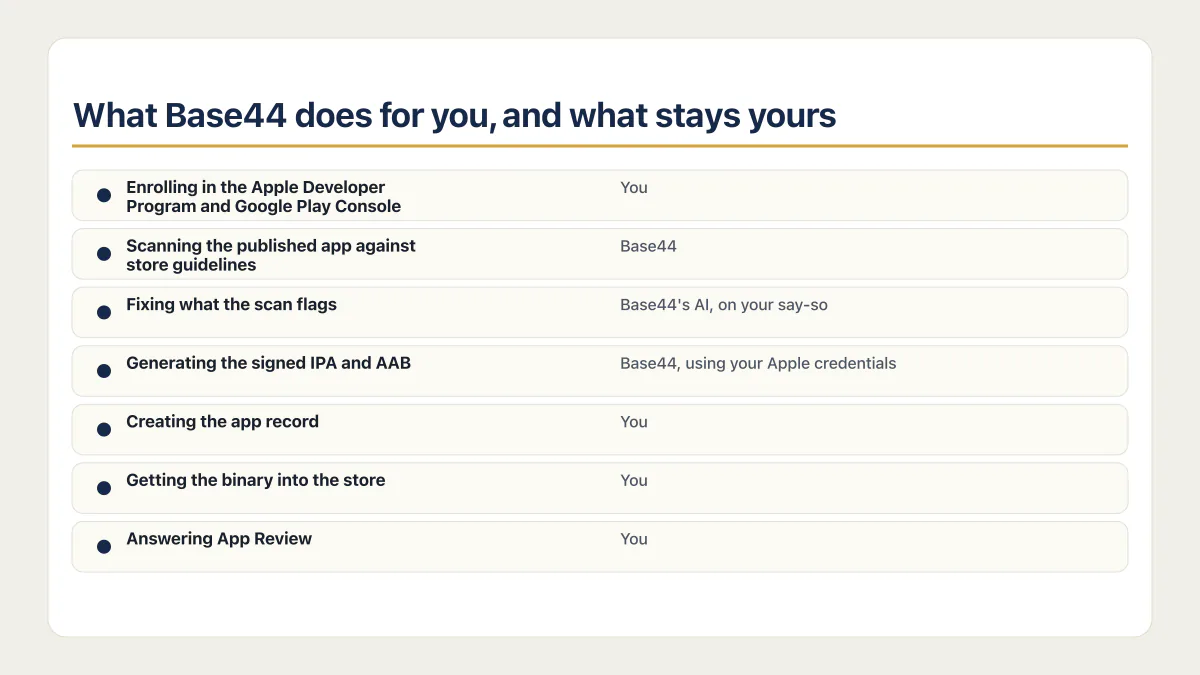
What Base44 does for you, and what stays yours
The scan and the file generation are Base44’s. Everything with an account behind it is yours, and that split is the single most useful thing to know before you start, because the steps Base44 owns take minutes and the steps you own take days.
| Stage | Who does it | What you have to have ready |
|---|---|---|
| Enrolling in the Apple Developer Program and Google Play Console | You | A payment method, and up to 2 business days for Apple’s activation email |
| Scanning the published app against store guidelines | Base44, inside the editor | A published Base44 app with a stable URL |
| Fixing what the scan flags | Base44’s AI, on your say-so | A read of each flagged item before you accept a change |
| Generating the signed IPA and AAB | Base44, using your Apple credentials | An Issuer ID, a Key ID, a Team ID and a .p8 API key file, on Builder or higher |
| Creating the app record in App Store Connect or Google Play Console | You | The bundle ID Base44 generated, plus a name, an SKU and a primary language |
| Getting the binary from your download folder into the store | You | An Apple-supported uploader such as Transporter, Xcode, or the App Store Connect API |
| Listing copy, screenshots and the icon | You | Short and long descriptions, phone and tablet screenshots, an app icon and feature graphics, support and privacy policy URLs |
| Answering App Review | You | Privacy policy and terms links that work and are reachable before sign-in |
Base44 says where its half stops, in one sentence at the end of the flow: “Base44 helps you get your app ready, but everything that happens after you submit in App Store Connect or Google Play Console is between you and the app stores.” Its documentation is equally direct about support, which does not chase your submission status, contact Apple or Google on your behalf, or handle review feedback for you.
Five of the eight rows are yours. The three that are Base44’s, the scan, the fixes and the file generation, are the ones people plan around.
Before you press anything
The prerequisite that catches people is the kind of Apple credential Base44 asks for. It wants App Store Connect API credentials rather than your Apple ID and password: an Issuer ID, a Key ID, a Team ID, and a .p8 key file you upload into the editor.
Those live somewhere most app owners have never opened. Base44’s submission documentation gives the path: “Go to App Store Connect and sign in with your Apple Developer account. Click Users and Access. Click Integrations.” The plus button on that screen creates the key, and the .p8 file downloads from there. Keep it somewhere you will find it again.
Choose an appropriate access role when you create the key. Base44 lists Admin or App Manager as examples in the normal creation path. If Base44 returns error 403 because the key lacks permission, its troubleshooting path escalates to a fresh Admin key and updated credentials in Base44.
Start the enrolment before anything else. Base44’s documentation notes that Apple sends an activation email after your enrolment payment is processed, and “This can take up to 2 business days.” That is the only queue here you cannot shorten, so do the app work while it clears. What publishing actually costs, once the two program fees stop being the whole bill, is worth calculating before you enrol rather than after.
Then the plan gate, which Base44 states plainly: “You must be on the Builder plan or higher to download your app files.” The scan itself runs on Free, and the bundles stay behind the gate. Builder is $50 a month, or $40 a month billed annually, prices checked 16 August 2026.
The click path from the editor to a downloaded build
This is the sequence Base44’s documentation instructs, with its own screen names and its own step order. Nothing here was clicked in the writing of this page.
- Open the app in the Base44 editor and click Publish at the top right. Yours. This is the same button that makes the web app live at its URL, and the store flow starts from the panel behind it.
- In that panel, open the Mobile app tab. Yours, one click.
- Click Check Your App, then Run App Scan, and choose whether to scan against App Store guidelines or Google Play guidelines. Base44 runs it. The two guideline sets are separate scans, so an app going to both stores gets scanned twice.
- Read the Readiness Score and the checks behind it. Base44 produces the score; deciding which failed and partial checks matter is yours.
- For each flagged item, choose Apply with AI to let Base44 make the change, or Copy Fix Prompt to take the instruction into the editor chat yourself. Base44’s AI writes the change either way; reading it before you accept it is yours.
- Rescan after the fixes land, and keep going until the failed checks are gone. Base44 runs the scan; you decide when the score is good enough to build against.
- Back in the Mobile app tab, click Build Stores Files. Yours.
- Choose Create App Store files for iOS, or Create Google Play files for Android. Yours, and they are separate builds.
- On the iOS path, paste the Issuer ID, the Key ID and the Team ID, and upload the
.p8API key file. Yours to supply, Base44’s to use. - Review the logo Base44 shows, or upload one that meets Apple’s and Google’s icon requirements. Yours.
- Click Generate files, then Download when the build finishes. Base44 builds and signs the file with the credentials you supplied, and you take delivery of an IPA or an AAB.
Step 11 is the one to slow down on, because it costs something that is not obvious and does not reset.
Base44’s troubleshooting section states that every generated IPA creates an iOS Distribution certificate and describes error 409 when the account reaches its active-certificate limit. It says the standard program allows up to three active production or distribution certificates. Apple’s current certificate overview describes the limit differently: distribution certificates belong to the team and only one of each distribution-certificate type is allowed per team. The two first-party descriptions do not resolve into one aggregate number.
Treat file generation as a limited step. Land every scan fix first, rescan, then generate once. If error 409 appears, inspect the exact team and certificate type in the Apple developer account. Revoke only a certificate you have confirmed is no longer needed, then retry.
Creating the App Store Connect record, with the bundle ID you did not choose
The IPA in your downloads folder has nowhere to go until an app record exists on Apple’s side. That record is made in App Store Connect, not in Base44.
Apple’s help documentation puts it under Apps: click the add button, the plus at the top left, then New App, then Create. It asks for six things: Platforms, App Name, Primary Language, Bundle ID, SKU and User Access. The role requirement is Account Holder, App Manager or Admin, and the Account Holder has to have signed the current agreement in the Business section before anyone can add an app at all.
Five of those six are free choices. Bundle ID is not, and that is the fact the rest of page one leaves out.
Base44 generates the identifier for you. Its documentation says: “Your Base44 package name is com.base[app-id].app, where [app-id] is your Base44 app ID.” It then closes the door on changing it: Base44 sets both the Bundle ID and the signing key itself, and its documentation says neither can be altered once the IPA or AAB exists.
So the record you create has to match what Base44 already put in the binary. If you register a tidy reverse-domain bundle ID because it looks right, the upload will not match the record. If the app already exists on a store as a native build under a different identifier, the stores block the update, and Base44’s guidance is to create a new app entry rather than reconcile them.
The record also opens the listing work, and the assets it asks for are the ones in the ownership table above. Each store wants the images at particular pixel sizes, and those sizes are worth reading separately before you start cropping.
One failure belongs to this step and is easy to misread. A build that uploads without error and then never turns up in the record you just made has its own causes, most of them in the record and the upload; compare the identifier, version and signing configuration Base44 chose against the record before looking further. Part of it is a naming trap. Apple’s add-an-app control is a plus at the top left of Apps. The control for attaching a build to a version is a different plus on a different screen. Two plus signs, two jobs. Before you ask Apple for anything, putting the build in front of testers is the cheapest way to learn whether the wrapper survives someone else’s phone.
How do I publish the Base44 app to the Google Play store?
Publishing a Base44 app to Google Play runs the same editor flow with Android-specific extras. You generate an AAB instead of an IPA, and you never open the Apple side at all. No .p8 file, no Issuer ID, no Apple certificate limit. If the app uses Google login, you also paste the Play app-signing SHA-256 fingerprint back into Base44 so that login keeps working in the distributed app.
The sequence Base44 documents:
- In the Mobile app tab, click Build Stores Files and choose Create Google Play files.
- Review or generate the logo, then click Generate files.
- Click Download when the AAB is ready.
- If the app uses Google login, open Setup in Google Play Console, then App integrity. Under App signing key certificate, copy the SHA-256 fingerprint value.
- For that Google-login app, return to Base44. In the Mobile app tab under Build Stores Files, click More Actions, then Add Google Play SHA. Paste the fingerprint and click Save.
- If Google asks for an ADI snippet, take the same route: More Actions, then Add Google Snippet, paste it, and click Save & Build.
The SHA step is conditional. Base44’s current submission documentation says it is needed only when the app supports Google login. Its purpose is to keep that login working in the version installed from Play. If the app has no Google login, skip the SHA step.
Two things about the Android path are outside this page. A Base44 binary rebuilt later can come back signed with a different certificate than the one Google is expecting, which is a specific and recoverable failure with its own recovery steps. And Google’s own rules around a first release, the closed-testing requirement, the Data safety form and Play App Signing itself apply to every app on the store regardless of what built it, so they belong with the general Play publishing guide rather than here.
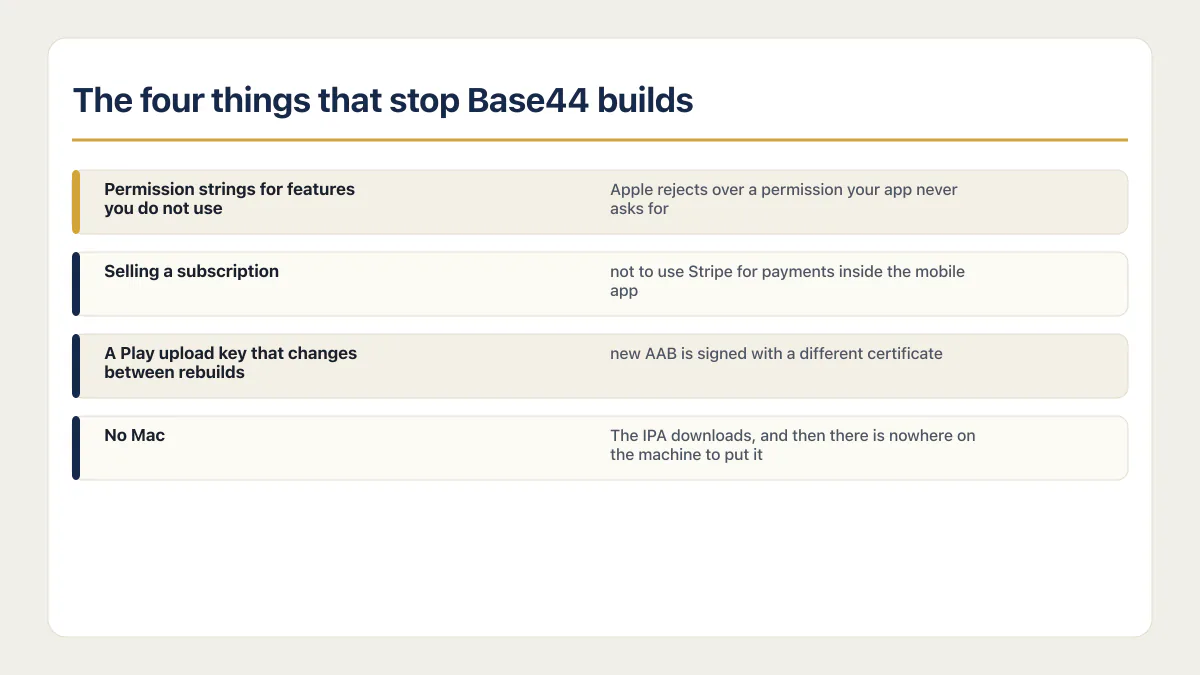
The four things that stop Base44 builds
Four failures account for most of what goes wrong after the files download. Each has a real answer, and each is a longer conversation than a row in a table.
| What stops it | What it looks like | Where the answer is |
|---|---|---|
| Permission strings for features you do not use | Apple rejects over a permission your app never asks for, because the wrapper declares it. Base44 now generates purpose strings automatically, which changed the failure rather than removing it. | The page on the permission strings a Base44 build emits and which ones Apple rejects. Until then, work back from the guideline Apple cited to the fix it implies. |
| Selling a subscription | Base44’s documentation says not to use Stripe for payments inside the mobile app, because both stores insist on their own billing for digital content. Its built-in StoreKit and Google Play Billing integration was still described as in progress on 16 August 2026. | The page on what to do if the app has to charge for access. Stripe stays fine for physical goods and real-world services. |
| A Play upload key that changes between rebuilds | An update is rejected because the new AAB is signed with a different certificate than the one Google has on file for the app. | The page on why a rebuilt Base44 binary is signed with a different certificate, and how to reset the upload key. |
| No Mac | The IPA downloads, and then there is nowhere on the machine to put it. | The page on how the file actually reaches Apple if you are on Windows. |
HealthKit gets a clause rather than a row, because it is a wall instead of a hurdle. Base44 does not support HealthKit, and its documentation records no route for putting the key into the build at all. An app that needs HealthKit is not a Base44 store build as of 16 August 2026; health data that arrives another way, through a form or an outside API, is a separate question about that source.
Which builders can put an app on the stores at all, and how they differ once you get past marketing pages, is the question one level up from this one. If the scan keeps flagging things that are really symptoms of the app rather than the submission, that is a different job again: fixing the Base44 app itself comes before packaging it.
Upload the IPA and submit it for review
Base44’s current submission page now links a step-by-step visual guide for the store dashboards. Apple’s documentation controls what happens to the IPA itself. Apple lists Transporter, Xcode, and the App Store Connect API as supported upload paths. For a Base44 IPA already on disk, Transporter is the simplest graphical route on a Mac.
- Install Transporter from the Mac App Store and sign in with an Apple account that can access the App Store Connect record.
- Add the Base44 IPA to Transporter and deliver it. Watch the delivery log for an upload error.
- Wait for Apple to process the build. Apple sends an email when processing finishes, and the bundle ID and version number associate the upload with the matching app record.
- In App Store Connect, open Apps, choose the app, and open the version under the iOS platform.
- In the Build section, click the add button, choose the processed build, click Done, then Save. Apple’s build-selection instructions require any missing export-compliance answers before review.
- Complete the required version metadata, screenshots, privacy answers, review contact, and demo login where the app needs one.
- Click Add for Review, create or choose the draft submission, then click Submit for Review. Apple’s submission instructions say the status changes to In Review when review begins.
The Transporter app requires macOS 10.15 or later. Apple also documents a Transporter command-line tool whose user guide lists Windows 11 and Red Hat Enterprise Linux alongside macOS. That command-line route needs its own authentication and setup. The Base44 file does not remove the uploader requirement.
One more absence worth stating. Nothing in this flow inspects what your app allows a signed-in user to reach: the scan reads your app against store guidelines, not against your own data rules, and a store listing changes nothing about who can see what. It puts the same app on more phones.
Common questions about publishing a Base44 app to the app stores
What happens when you publish an app on Base44?
Publish makes your web app live at its URL. It puts nothing in any store. The button is doing double duty: the same Publish panel holds the Mobile app tab where the store flow starts, so pressing Publish is step one of the store path and also the entire web deployment. If someone tells you they published their Base44 app, ask which of the two they mean.
How long does it take to get a Base44 app on the App Store?
The parts you can predict are Apple’s enrolment activation, which Base44’s documentation says can take up to 2 business days, and the scan-and-fix loop, which is however long your app takes to stop failing checks. The part you cannot predict is App Review, which has its own queue and its own answer.
Do you need the Builder plan to publish to the app stores?
Yes, at the download step specifically. Base44’s documentation says “You must be on the Builder plan or higher to download your app files”, and the scan itself runs on Free. So a Free account can find out whether the app would pass a guidelines scan, then hits the wall where files exist. Builder is $50 a month, or $40 a month billed annually, prices checked 16 August 2026.
Where do the Issuer ID, Key ID and Team ID come from?
App Store Connect, not Base44 and not your Apple ID settings. Base44’s documentation gives the path as signing in to App Store Connect, then Users and Access, then Integrations, where the plus button creates a new API key and offers the .p8 file for download. The three IDs and that file are what you paste and upload into Base44’s Create App Store files step, and Base44’s troubleshooting entries for errors 401 and 403 both send you back to this screen.
Why did Base44 return error 403 when generating files?
The App Store Connect API key does not have enough permissions. Base44’s troubleshooting entry for 403 is explicit that this is a permissions problem on the key, and the fix is to create a new key in App Store Connect with the Admin role selected, download the new .p8, and update the credentials in Base44. Base44’s instruction is a fresh key rather than an edit to the one that failed.
What does error 401 mean when Base44 generates iOS files?
The credentials are missing, invalid or expired. Base44 describes 401 that way, and the check is to compare the Issuer ID, Key ID and Team ID against the values shown in App Store Connect, then confirm the .p8 file is the right one and has not been revoked. Where 403 means the key is not allowed to do it, 401 means Apple did not accept the key at all.
What happens if you regenerate the iOS files too many times?
Base44 can return error 409 after repeated IPA generation because each generation creates an iOS Distribution certificate. Base44 says the standard program allows up to three active production or distribution certificates, while Apple’s current overview describes limits by team and certificate type. If the error appears, inspect that exact certificate type in the Apple developer account. Revoke only a certificate you have confirmed is no longer needed, then retry. Batch fixes and generate once where possible.
Can you change the package name of a Base44 app?
No, so the store record has to be built around the identifier rather than the other way round. Base44 generates it as com.base[app-id].app off your editor app ID, and its documentation rules out editing that value or the signing key once the files exist. If an existing native listing uses a different identifier, Base44’s guidance is a new app entry rather than an update.
When does a Base44 Google Play build need the SHA-256 fingerprint?
Only when the app supports Google login. Base44 says the fingerprint keeps Google login working in the distributed app. In Google Play Console, open Setup, then App integrity, and copy the SHA-256 fingerprint under App signing key certificate. In Base44, open the Mobile app tab, then Build Stores Files, More Actions, and Add Google Play SHA. Paste the value and save it. Skip this step when the app has no Google login.
Fixing the bug in this guide gets you past today. If you would rather have the whole foundation checked and built in one go, that is what the sprint below is for.
Built it with AI. Now it has to hold up for real customers.
The Production Hardening Sprint takes the app you already have and builds the production foundation underneath it. Authentication and access rules, payments that stay consistent, error handling, monitoring, backups, automated tests and a documented handover. Our engineers work inside your existing codebase for ten working days. All 123 deliverables are included, and you get the evidence for each one.
See the Production Hardening Sprint →  $2,500 fixed price · 10 working days · One codebase