Google Play refused the update and named a key you never picked. That is the ordinary result when an AI builder regenerates an Android bundle: the new file carries a different signing certificate than the one your first upload registered, and, depending on how that first upload was made, a different package name as well. The two arrive together and look like one problem. The second one is the expensive one.
If you have not published on Google Play yet, this is the wrong page: publishing from scratch, including turning Play App Signing on for the first time, is a different job in a different order. If you are still working out the whole Base44 route to the App Store and Google Play, that end-to-end path is its own subject, and this page is where you come back when Play blocks an update.
An upload key change is recoverable. You generate a new key, request an upload key reset in the Play Console, and keep the listing you already have. A package name change is not recoverable by a form: Google Play treats a changed application ID as a completely different app, so the original listing can never take a build that carries the new package name. The listing itself stays updatable, but only by a build that keeps the original application ID and signing certificate, which Base44’s regenerated build does not.
Everything below was read from Google’s and Base44’s own published documentation on 16 August 2026, plus one public post by the person it happened to. No Base44 build has been submitted to Google Play for this page, so nothing here reports what a console screen looked like from the inside.
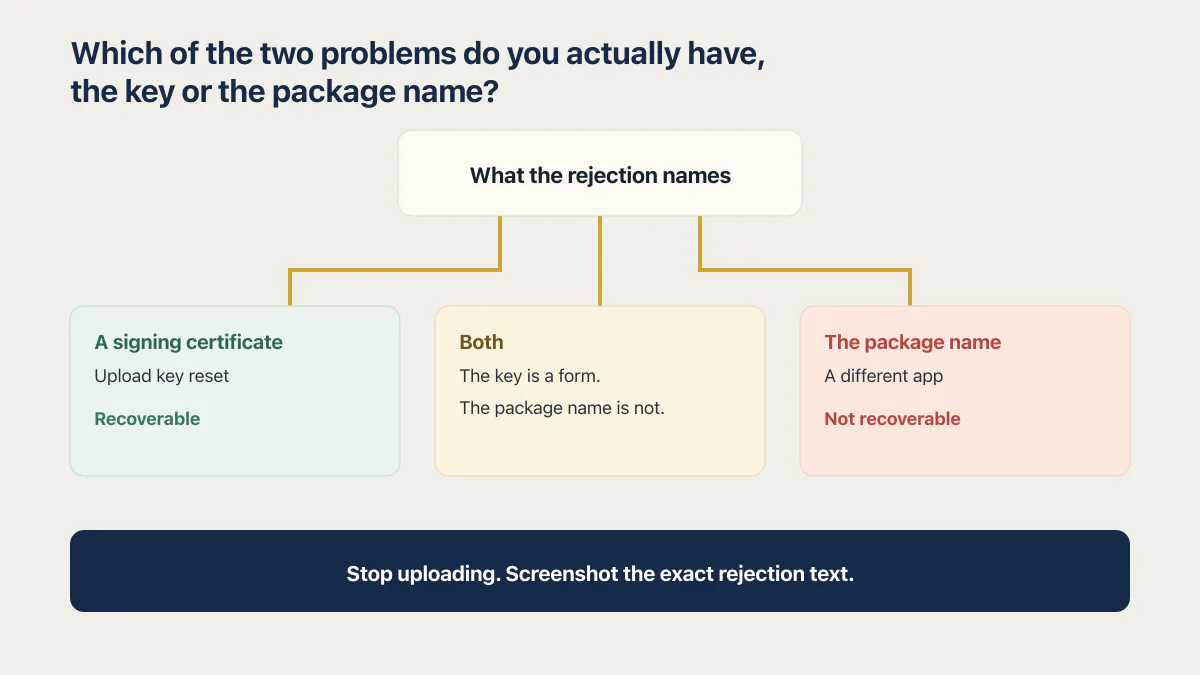
Which of the two problems do you actually have, the key or the package name?
The Play Console’s rejection text separates them. A signing certificate or fingerprint mismatch is the recoverable branch and ends in an upload key reset. A package name or application ID complaint is the permanent branch and ends in a second listing. Getting both, the key first, is the common rebuilt-binary case.
Before you read further, stop uploading until you have identified the rejection. Repeated attempts add noise and buy you nothing. Screenshot the exact rejection text and write down any certificate fingerprint it names, because the fingerprint tells you which key the file was actually signed with.
| What the rejection names | What it means | Recoverable on the same listing? |
|---|---|---|
| A signing certificate, an upload certificate, or a SHA-1 fingerprint that does not match | The bundle was signed with a different upload key than the one registered against your app | Yes. This is the upload key reset below |
| The package name or the application ID | The identity of the app changed between builds, and Play reads it as a different app | Not this build. The existing listing can only take a build that carries the original application ID |
| Both, the certificate first and the package name after the reset went through | One rebuild changed both values at once. This is the shape a Base44 builder reported publicly in August 2026 | Half of it. The key is a form. The package name is not |
| Neither. The upload fails for another reason, or the build never turns up | Something else is wrong, and it is not an identity problem | Not this page. A build that never appears, and a build that crashes once live, are separate failures |
Work out which row you are in before you touch anything. One branch waits for a form to clear. The other needs a replacement listing planned.
Why a rebuilt Base44 bundle comes out signed differently
Base44 owns both identity values in the files it generates, and it says so. Its store-submission documentation states: “Base44 automatically configures a Bundle ID and signing key for your app files. These values cannot be changed inside the generated IPA or AAB files.” The same page names the consequence directly: “If the values do not match a previous version that you uploaded manually or from another tool, the stores block the update.”
The Android half of that identity is predictable. Base44 documents the format plainly: the package name is com.base[app-id].app, built from the app ID that sits in your editor URL. If your first Google Play upload used a package name you or a contractor chose by hand, and a later build came from the generator, the two were never going to match.
| Identity value | Who sets it | Can it change after the first upload? |
|---|---|---|
The application ID, generated as com.base[app-id].app from your editor app ID | Base44’s generator | Not on the same Play listing. Google reads a change as a different app |
| The signing key applied to the generated AAB | Base44, automatically, and it cannot be edited inside the file | Not inside the file. On Google’s side, an upload key can be reset |
The trigger for a regenerate is worth knowing before you set one off. Base44 says you only need to generate new app files and submit an update “when something in the app shell changes, such as the app name, icon, or bundle identifiers, or when you add features that require new device permissions.” Content and logic changes inside a published app do not need a new binary. An icon swap does, and it does not feel like an identity event to anyone who is not thinking about certificates.
Downloading the generated files takes the Builder plan or higher, so what each Base44 plan costs decides who on your side can produce a store build at all. As of 16 August 2026, Base44’s published documentation index carries no page on keystores, upload keys, Play App Signing, or Android signing certificates: the store-submission page is the only place signing is named, in the single sentence quoted above. That index is a machine-readable file at docs.base44.com/llms.txt rather than a page written for readers, so it is named here and not linked.
What a Base44 store build actually contains sits with the mobile-build question rather than with this failure. So does the broader question of which AI builders can make mobile apps at all, which is where the route decision belongs.
Fixing the signing half: request an upload key reset
Two keys exist and only one of them is yours. Google’s Android signing documentation, last updated 6 March 2026, defines the app signing key this way: “The key that is used to sign APKs that are installed on a user’s device. As part of Android’s secure update model, the signing key never changes during the lifetime of your app.” The upload key is the other one: “The key you use to sign the app bundle or APK before you upload it for app signing with Google Play.” Under Play App Signing, Google holds the first and you hold the second.
One wrinkle sits underneath Google’s instructions. They are written for someone who owns the keystore and can export a certificate out of it, and Base44’s documentation says its signing key cannot be changed inside the generated AAB. The Base44 builder who hit this in August 2026 did get through this half, so it is solvable, but Google’s assumed starting point is not yours.
The path Google’s Play App Signing help page documents, read on 16 August 2026:
-
Get the certificate that your future uploads will carry. For a keystore you own, that is the export in the next step. For a Base44-generated bundle, whose key Base44 holds and does not let you change, the certificate has to come from Base44: ask its support for the upload certificate of the bundles it will generate for you, and confirm before you reset that later builds keep that same signing identity. As of 16 August 2026 Base44 publishes no page describing that request.
-
Export it as a PEM file, using Google’s command exactly as published:
keytool -export -rfc -keystore upload-keystore.jks -alias upload -file upload_certificate.pem -
In the Play Console, open the app and go to Protected with Play, then Play Store protection, then Manage Play app signing.
-
Find the Upload key certificate section and choose Request upload key reset, then upload the PEM.
-
Wait for the reset to take effect before you upload another bundle, and do not schedule a release behind it.
The reset changes which key Play accepts uploads from. It does not change the app signing key, so people who already installed the app are unaffected and updates continue to install over the existing version. Google’s own framing is that if you lose your upload key or suspect it was compromised, “you are not locked out of your app.”
Step 5 has no number attached to it on purpose. As of 16 August 2026, Google’s Play App Signing help page does not state how long a reset takes to take effect. There is no published turnaround, so treat the wait as unknown rather than short, and do not give anyone a date for a release that depends on it.
One more thing will trip you up before you find the button. Older guides and community answers send you to a menu called “App integrity” or to “Play app signing settings”, and neither reads that way now. The label moved. The durable version, the one that survives the next rename, is that the setting lives on the app’s Play App Signing page in the Play Console, in the section about the upload key certificate. If your screen does not match the words above, look for that page rather than those menu items.
When there is no upload key to reset
Run this check before you spend an afternoon on the reset. First confirm that you are signed in as the Play developer account owner, because Google’s current instructions reserve the reset request for that account. If you are not the owner, a missing upload-key section does not establish anything about the app’s signing setup. Ask the owner to open the app’s Play App Signing page instead.
If the account owner confirms that the app is not enrolled in Play App Signing, the key it was published with is the app signing key itself, and Android’s model says that key never changes for the lifetime of the app. There is no upload-key reset for that state, and you are in the branch below.
Google’s Play App Signing help page documents the owner-only reset path, but it does not say that a missing upload-key section proves the app is not enrolled. Treat that absence as an account-access or enrollment question until the owner verifies which state the app is in.
The package name half, which no reset can fix
Google’s Android app module configuration guide states the rule without hedging, on a page last updated 26 February 2026: “Once you publish your app, you should never change the application ID. If you change the application ID, Google Play Store treats the upload as a completely different app. If you want to upload a new version of your app, you must use the same application ID and signing certificate as when originally published.”
Base44’s documentation says the same thing from the other side, and then prescribes the remedy: “If they do not match and you cannot update the existing listing, create a new app entry in the store and submit the Base44 build as a new app.”
That remedy is correct for a build you cannot rename, and it is expensive. The other route is engineering work: a build made from the exported source, or from another stack, that keeps the original application ID and is signed with the registered upload key can still update the old listing, because Google’s rule is about the identity on the build, not about which tool made it. Whether that is cheaper than relaunching depends on whether you can get the code out with the original ID intact. A new app entry is a new listing: the installs, the ratings and reviews, the store URL in your emails and on your site, and whatever progress the old testing track had made all stay with the old one. None of it is recoverable by asking. It is the price of the rule Google states above.
A Base44 builder posted the whole sequence publicly on 6 August 2026, in r/Base44, under the title:
Base44 changed my Android package name and may have cost me two Google Play testing cycles
The body describes the two halves arriving in order:
I’m launching an app built entirely in Base44 and have run into two serious mobile publishing issues. First, I had to reset my Google Play upload key because newer Base44 builds were signed with a different certificate.
And then the half that no form fixes:
Once that was resolved, my newest AAB was rejected because its package name no longer matched the original Base44-generated build. The original build used a custom package name. The current build uses Base44’s automatically generated package name. Google Play does not allow an existing app’s package name to change, so I can no longer update my original listing.
The post is on Reddit here. Reddit is not fetchable by the tooling used for this page, so these lines come from a capture taken into AxonBuild’s prospect research on 12 August 2026 rather than from a live read. That capture cuts off mid-word shortly after the last sentence quoted, which is why nothing beyond “my original listing.” appears here. The “two testing cycles” in the title is their own estimate of the cost, not a statement about how Play’s testing tracks work.
Notice what the second quote does not say. They did not rename anything: one regenerate moved the app’s identity, and Google’s rule did the rest.
Moving the app off Base44 entirely is a real option here and a separate decision. It recovers the listing only if the rebuilt app ships under the original application ID and signing certificate; a migrated app with a new ID is a new listing like any other.
The one-time setup that stops this happening again
None of this helps a listing you have already lost. The signing and package-name choices have to be correct before the first upload. The recordkeeping and regeneration checks can begin later, although starting them early leaves less identity history to reconstruct.
Turn Play App Signing on when the app is created. With it on, a future key change is a reset request. With it off, the signing key is the one Android says never changes, and there is no equivalent recovery. Google’s Android App Bundle guide puts the wider default plainly: “From August 2021, new apps are required to publish with the Android App Bundle on Google Play.” That is the format Base44’s generator produces.
Let the generated build define the identity. Do not hand-pick a custom package name for a first upload that a builder’s regenerate cannot reproduce. That mismatch is the exact shape of the r/Base44 failure: a custom name on the first build, com.base[app-id].app on every one after it. A tidier-looking name you cannot reproduce is a name that ends a listing.
Record the package name and the upload certificate fingerprint somewhere the business can reach. Not one laptop, not one person’s password manager. The same argument applies to key custody in a builder-produced Android build elsewhere: what strands a project is rarely the key, it is that only one person could reach it.
Then treat every regenerate as an identity event. Base44 names the triggers itself: the app name, the icon, bundle identifiers, or a new device permission. Before you upload the resulting file, check the package name and the signing certificate against what the listing already has.
What to do right now, in order
- Stop uploading until you have identified the rejection. Repeated failed attempts add noise and buy you nothing.
- Screenshot the exact rejection text, including any certificate fingerprint it names, and save it somewhere other than the console.
- Match the message to a row in the table at the top of this page and decide which branch you are in.
- Confirm that you are using the developer account owner login, then open the app’s Play App Signing page. If you are not the owner, ask that person to check it. Skip to step 7 only after the owner confirms that the app is not enrolled in Play App Signing.
- If the problem is the signing certificate only, follow the reset steps above and wait for it to clear before you upload again. Do not announce a date.
- Upload one build after the reset takes effect. If it goes through, you are done, and the package name never changed.
- If Play rejects the package name or the application ID, stop treating this as a technical problem. The listing cannot take the build, and the decision is what a new listing is worth against what the old one still earns.
- Before you create anything new, fix the cause. The next build has to be reproducible or you will be back here on the following icon change.
Step 7 is the honest end of the self-service path. No console setting, no support form, and no wait changes Google’s answer on the application ID.
When this is worth handing over
If you are in the recoverable branch, this is a Tuesday afternoon. Read the messages, run the reset, wait, upload once. Nobody needs to be paid for that.
The other branch is a business decision wearing a technical error message: relaunch under a new listing and rebuild the installs and reviews, or keep the old listing frozen at its last working version while you sort out where the app is going to live. Neither is obviously right, and both cost you months later rather than this week. A second opinion beats another hour in the Play Console.
If what you actually want is for the app to stop being regenerated by a builder that owns its identity values, that is bigger than unblocking one upload and deserves its own decision.
Common questions about the Play upload key and package name
How do I request an upload key reset?
You request it in the Play Console on the app’s Play App Signing page. As of 16 August 2026 the route is Protected with Play, then Play Store protection, then Manage Play app signing, then the Upload key certificate section, where Request upload key reset takes a PEM certificate file.
If the menu labels on your screen differ, look for the app’s Play App Signing page rather than for those exact words. The label has moved before.
Does resetting the upload key affect people who already installed my app?
No. The reset changes which key Play accepts new uploads from. It does not touch the app signing key, which is the key user devices trust, so existing installs keep working and updates continue to install over them normally. Google’s wording is that losing an upload key does not lock you out of your app.
How long does an upload key reset take?
Google does not say. As of 16 August 2026, the Play App Signing help page carries no statement about how long a reset takes to take effect, and no published turnaround exists to quote.
Plan for it not being instant, and do not put a launch date, a campaign, or a customer promise behind it.
Can I change my app’s package name on Google Play?
No. Google’s Android documentation states that once you publish, you should never change the application ID, and that Google Play treats a changed application ID as a completely different app. Uploading a new version requires the same application ID and the same signing certificate as the original publication.
A package name change is therefore not a support ticket. The path forward is a new app entry, with new installs, new reviews, and a new store URL.
What is the difference between the upload key and the app signing key?
The upload key signs the bundle you send to Google. The app signing key is what Google uses to sign the APKs that reach user devices, and Android’s update model means it never changes for the life of the app. Play App Signing is the arrangement where Google holds the second one.
That split is why one of these failures is recoverable. Only the key you hold can be swapped out.
Why did my Base44 build come out with a different package name?
Because Base44 generates it. If a build came out of Base44’s generator, the identifier is com.base[app-id].app with your editor app ID in the middle, and neither it nor the signing key can be edited inside the file afterwards. So a first upload made under a hand-picked package name was always going to mismatch the first regenerate.
Can I get my old listing back if I had to publish a new one?
Not by transferring the new build onto it. The old listing keeps its installs, ratings, and URL, and stays on whatever version it last accepted. The new listing starts at zero, and none of that is reversible through the Play Console.
Keeping the old listing live and pointing at something that still works, rather than deleting it, buys you time to move people across on your own terms.
Does the same thing happen on the Apple side?
Not in this form. Apple’s equivalent of the identity value is the Bundle ID, and Base44 configures that automatically too, so the same mismatch can block an update. The rejections Apple actually sends most often are about other things entirely.
If Apple rather than Google is turning your build away, Apple’s rejection notes and which fix each one wants covers that side. The permission strings a builder-generated iOS build tends to miss are a separate topic, as is selling a subscription inside one.
Do I need a Google Play developer account of my own for this?
You need access to the account the app was published under, because the reset request is made against that app in that console. Whether the account is yours personally or the business’s is a separate question, and it is the one that decides who can still act when someone leaves.
Who should own the store accounts is worth settling once rather than during an incident, and the first-publish path on Google Play covers the account setup itself.
Fixing the bug in this guide gets you past today. If you would rather have the whole foundation checked and built in one go, that is what the sprint below is for.
Built it with AI. Now it has to hold up for real customers.
The Production Hardening Sprint takes the app you already have and builds the production foundation underneath it. Authentication and access rules, payments that stay consistent, error handling, monitoring, backups, automated tests and a documented handover. Our engineers work inside your existing codebase for ten working days. All 123 deliverables are included, and you get the evidence for each one.
See the Production Hardening Sprint →  $2,500 fixed price · 10 working days · One codebase