Publishing to Google Play means uploading a signed Android App Bundle to a verified developer account, filling in the store listing and the Data safety form, then rolling out a release. A new personal developer account has one extra gate before any of that reaches the public: a closed test with 12 testers opted in for 14 continuous days.
You built the app by describing it. Now Play wants a file, and every guide on the first page of Google for this question on 16 August 2026 starts at the moment you already have one: open Play Console, upload your bundle, fill in the listing, roll out. Fine advice for somebody who spent the afternoon in Android Studio, useless for somebody whose app currently exists as a preview link in a builder tab.
Every Play requirement quoted here was read on Google’s own Help Center and Android developer documentation on 16 August 2026, with the date on each fact. Nothing here reports a build being pushed to Play; it is a documented reading of the current rules, and Google moves them often enough that the dates matter.
What your AI builder hands you, and what Google Play actually accepts
Google Play accepts one thing from a new app: an Android App Bundle, signed, uploaded to a release track. Android’s App Bundle documentation (page last updated 24 June 2026) sets the cutoff at August 2021, since when new apps are required to publish with the App Bundle, and the compressed APKs Play generates from it to install your app must total no more than 4 GB.
So the useful question, before you open Play Console at all, is which of these four things you are currently holding.
| What you have now | What Play needs from it | Who signs the file |
|---|---|---|
| A store-ready AAB the builder generated for you | Nothing further. Upload it as a release | You upload it under your own developer account; Google holds the key devices trust |
| A React Native or Expo project in a repo | An AAB from a cloud build service or a local Gradle build | Your build service, using an upload key you own |
| A web app running in a browser | An Android shell around it, built and signed like any other Android project | Whoever configures the wrapper |
| A preview URL inside the builder | Play does not accept a link. There is no path from here without a build step | Nobody yet |
Base44 sits in the first row and documents it plainly: “When your app is ready for Android, use the Mobile app tab to generate a Google Play ready AAB bundle”. That same page is just as clear that you still submit the app yourself, through your own store accounts, with the listing details, pricing and release settings under your control (Base44’s store submission documentation, read 16 August 2026). The builder produces the file. The account, the listing, the price and the release stay yours, along with everything that goes wrong with them.
Most readers land in row three. A prompt that said “build me an app” and produced something with a login screen and a dashboard usually produced a web app, and turning a web app into a mobile app is a separate job with its own decisions about wrappers, offline behavior and permissions. Whether your builder can make a mobile app at all is worth settling before you pay anything to Google, because the answer differs by tool: what Base44 builds for Android is not what Lovable can and cannot build for phones, and what Replit emits for mobile depends heavily on what you asked it for. An Expo or React Native build going to the stores follows the second row instead, and its own path is a different piece of work.
The Apple half of this runs on a completely different set of gates. If you are shipping to both, how to publish an app on the App Store covers that side, and the Base44 path to both stores covers the case where one builder is feeding both.
How to publish an app on the Google Play Store, step by step
Eleven steps, in the order Play enforces them. Steps 1 to 5 need nobody technical. Step 6 needs somebody who can run a build, unless your builder emits the bundle for you.
- 01 Create the Play Console developer account and pay the one-time US$25 registration fee. Google accepts a credit or debit card for it.
- 02 Pass identity verification. Google may ask for a valid government ID and a credit card, both under your legal name. Personal accounts also supply a legal name and legal address, a contact email and a contact phone number.
- 03 Verify your contact details. Google requires all contact information to be "verified using a one-time password and remain operational for the duration of your developer account".
- 04 Verify Android device access. New personal accounts confirm they can reach an Android device using the Play Console mobile app before their app can go live.
- 05 Create the app and choose the package name. This is the decision that cannot be undone later. Pick it deliberately, not from whatever the builder auto-generated from your project title.
- 06 Set up Play App Signing and produce the AAB. Google keeps the key that user devices trust; you keep the upload key you sign the bundle with.
- 07 Fill in the store listing. Title, short and full description, and the graphics each store size demands. Play rejects a listing with the wrong asset dimensions before a human ever reads it.
- 08 Complete the content rating questionnaire. Google states plainly that it does not allow unrated apps on Google Play.
- 09 Complete the Data safety form. Every developer declares what the app collects and shares, and the declaration has to match what the app actually does.
- 10 Run the closed test if the account is new and personal. Twelve testers, opted in continuously for the preceding fourteen days.
- 11 Apply for production access, wait for review, then roll out.
Fee checked on Google’s Play Console getting-started page on 16 August 2026. The identity and contact-verification wording comes from that page and from Google’s list of required account information, read the same day. That second page is where the one-time password requirement is written down, and it applies to the developer email address as well as the contact address and phone.
Steps 7 and 8 stall a lot of first-time submissions, and neither has anything to do with code. The listing graphics each store demands are a fixed-size problem with a fixed answer, and the pre-submission pass that catches them is worth running before you touch the release track.
One more thing between step 6 and step 10: the bundle you upload is a release build, carrying whatever configuration was compiled into it rather than whatever the builder’s preview environment supplied. The environment variables a release build does not carry are the usual reason a tester installs the app, opens it, and watches a login screen do nothing. When it works on your screen and not in production is the same failure one layer up, and closed testing is where you find out.
What is Google Play’s closed testing requirement?
Google requires a new personal developer account to run a closed test before it can apply for production access. At least 12 testers must have been opted in continuously for the preceding 14 days at the moment you apply. The rule applies to personal accounts created after 13 November 2023, and production access review usually takes seven days or less, but can occasionally take longer.
The word that costs people three weeks is preceding. Google’s app testing requirements page frames the fourteen days as a rolling, backward-looking window measured when you apply, not a countdown you start and then forget. Most third-party guides paraphrase it as “run a 14-day test”, which is close enough to be wrong: if a tester drops out on day nine and rejoins on day eleven, the clock did not pause. Google’s wording is that “Testers who opt in, test for fewer than 14 days, and then opt out do not count toward the requirement”, and that if a tester opts out and opts back in later, “the 14 days must be consecutive to count toward the minimum requirement of 12 continuous opted-in testers”. Twelve people have to be simultaneously opted in for the whole fortnight ending on your application date.
As of 16 August 2026 that page carries no waiver: no exception, no exemption, no appeal route, and no mention of organization accounts at all. That absence is the source of the widely repeated line that organizations are exempt: the rule names personal accounts created after 13 November 2023, so an organization account falls outside what the page describes. That is an inference from which accounts Google named, not a sentence Google published. Worth knowing the difference before restructuring an account on the strength of it.
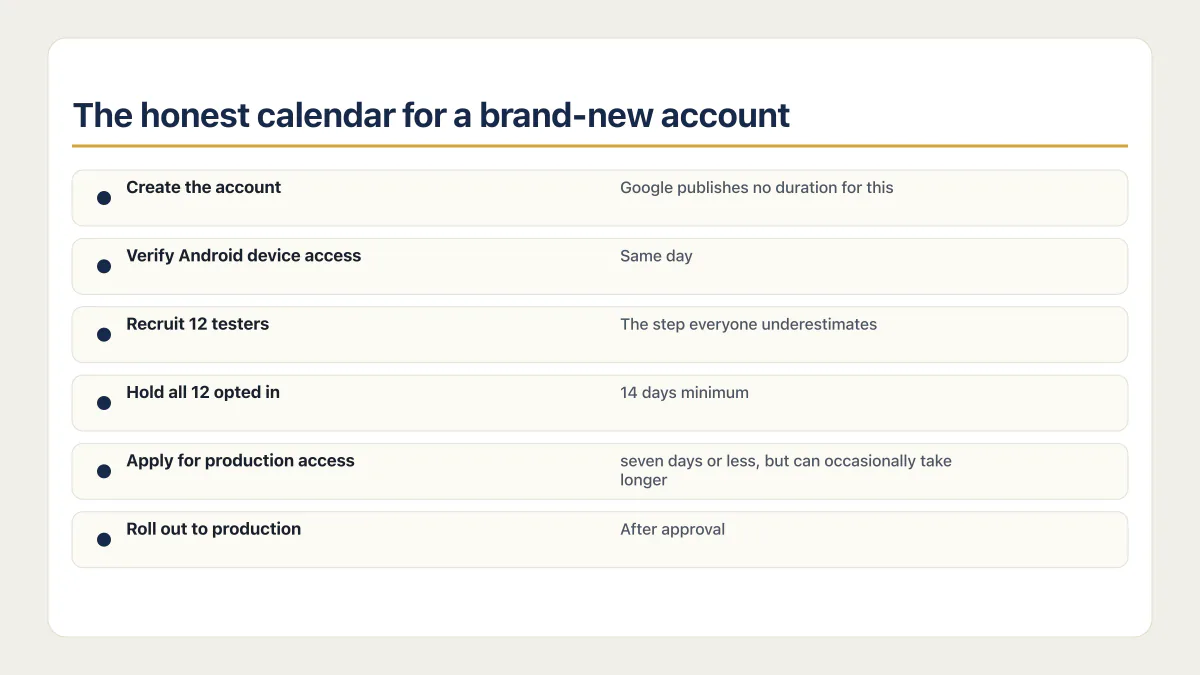
The honest calendar for a brand-new account
This is arithmetic from Google’s published rules, not an average of real launches. Nobody has published a measured average, and any guide that gives you one is guessing.
| Step | Elapsed time for a new personal account |
|---|---|
| Create the account, pay the fee, pass identity and address checks, verify contact details by one-time password | Google publishes no duration for this |
| Verify Android device access through the Play Console mobile app | Same day |
| Recruit 12 testers and get all 12 opted in | The step everyone underestimates |
| Hold all 12 opted in continuously for the preceding 14 days | 14 days minimum, and the window is measured backwards from the day you apply |
| Apply for production access and wait for review | ”seven days or less, but can occasionally take longer” |
| Roll out to production | After approval |
The documented testing floor is 14 continuous days after all 12 testers have opted in. Account setup and tester recruitment add time before that. Production-access review is a separate variable stage that Google says usually takes seven days or less, but can take longer.
Renting twelve strangers who install the app and never open it is a bad trade, for a practical reason rather than a moral one. Google’s production-access application asks how testers used the app and what feedback they gave. It can require continued testing when engagement is insufficient. You are also about to sign a Data safety declaration about how your app handles user data, and a fortnight of real use is the cheapest chance you will get to find out whether the declaration is true. Play’s closed test is a gate on your account, and what to actually do with those 14 days is a separate testing question. Deciding whether the app is ready to be in front of strangers comes first either way, and that question has its own checks.
Apple’s equivalent is TestFlight, which gates and reviews differently. The Apple side of the same job is worth reading in parallel if you are shipping to both stores.
Play App Signing: two keys, and why a rebuilt app breaks one
Play App Signing splits one key into two, and this is the part of Android publishing that most reliably confuses somebody who did not write the build config.
Google’s app signing documentation (page last updated 6 March 2026) defines both. The app signing key signs the APKs that get installed on a user’s device. Ordinary updates keep signing continuity, but Google documents a Play Console key upgrade. The new key signs installs and updates on Android 13 and later while the old key remains in use for earlier versions. Google holds those keys under Play App Signing. The upload key signs the bundle you send to Play before Play re-signs it. You hold that one. Configuring Play App Signing “is required to sign your app for distribution through Google Play (except for apps created before August 2021, which may continue distributing self-signed APKs)”, so nothing you publish now escapes it.
The AI-built-app version of the problem: regenerating a project can produce a binary signed with a different upload key than the one Play has on file, and Play rejects the upload even though the build itself is fine. That happens when the tooling that produced the first bundle creates a fresh keystore for the second one, which is exactly the kind of state an editor-based builder does not treat as yours to preserve.
Google’s position on losing that key is reassuring and specific: lose the upload key or suspect it was compromised, and you are not locked out of your app (Use Play App Signing, read 16 August 2026). The reset request lives under Protected with Play > Play Store protection > Manage Play app signing, in the Upload key certificate section. What Google does not publish anywhere is how long the reset takes. Neither signing page carried a stated turnaround on 16 August 2026, and the figures passed around in forum answers are community estimates rather than Google’s. Plan around not knowing.
Diagnosing an upload that Play has already rejected is a different job from setting the keys up correctly the first time, and when your Play upload key changes there is a specific sequence for getting back in. The preventive version fits in one line: pin the package name and keep the upload keystore somewhere the business can reach, not in one laptop’s keychain. An AI-built React Native app going to Play has the same key-custody problem in a slightly different shape.
The Data safety form, and the new clause about AI
Every app on Play carries a data declaration. Google’s wording is that “All developers must declare how they collect and handle user data for the apps they publish on Google Play”, and since 20 July 2022 an accurate, completed Data safety form has been required for every app. Get it wrong and the consequence is “blocked updates or removal from Google Play” (Data safety section guidance, read 16 August 2026). Google also puts the responsibility squarely on you, on the grounds that “only you possess all the information required to complete the Data safety form”.
That is a harder sentence than it looks when you did not write the code. An AI-built app usually collects more than its owner remembers, because the builder wired in things nobody asked about: analytics on first launch, crash reporting, a hosted database holding email addresses, a payment SDK, and increasingly an AI provider the app calls with whatever the user typed. Every one of those is a data flow you are about to declare or fail to declare.
Google closed the gap in that last one on 15 July 2026, in a policy announcement that says it is “clarifying that our User Data requirements also apply to third-party AI integrations and that developers remain responsible for ensuring compliance with this policy, including limited use, disclosure and consent” (Play policy announcement, read 16 August 2026). If your app pipes user text to a model API, that is user data leaving the app under Play’s rules, and the declaration has to say so. The same announcement states that Google does not allow unrated apps on Google Play, which is why the content rating questionnaire is a hard step.
So before you fill the form, list every outbound network call the app makes, or have somebody list them for you. The answers about data types, sharing, encryption in transit and deletion requests live in the code, not in your memory of what you asked for.
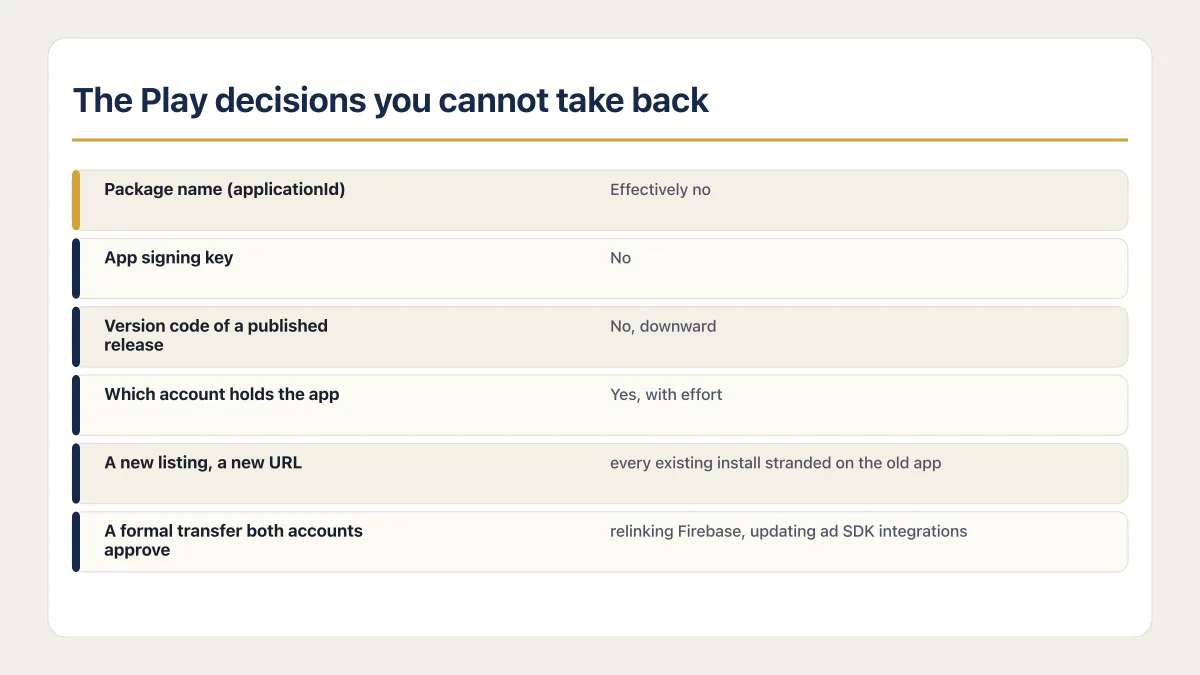
The Play decisions to make deliberately
Four choices in Play Console outlive almost everything else about your app. None of the pages ranking for this query on 16 August 2026 name them, and three of the four get made in the first twenty minutes by somebody clicking through setup.
| Decision | Reversible? | What undoing it costs | Who really chooses it in an AI build |
|---|---|---|---|
Package name (applicationId) | Effectively no | A new listing, a new URL, and every existing install stranded on the old app | The builder, usually auto-generated from the project name |
| App signing key | Limited change path | Play Console supports an app-signing-key upgrade, with the old key retained for earlier Android versions | Play App Signing generates it when you enroll |
| Version code of a published release | No, downward | Android blocks installing a lower version code over a higher one, so a number burned high stays burned | The build tooling, which increments it silently |
| Which account holds the app | Yes, with effort | A formal transfer both accounts approve, plus relinking Firebase, updating ad SDK integrations, and leaving pre-transfer orders behind | Whoever created the account, often a contractor |
The version-code row is the one nobody sees coming. Android’s versioning documentation (last updated 20 August 2025) says Android uses the versionCode value to block downgrades, refusing to install an APK whose versionCode is lower than the one already on the device, and it caps the value Play accepts at 2100000000. Build tooling that stamps a timestamp into that field breaks nothing today and removes your ability to ship a lower number ever again.
The transfer row is why who should own the developer account matters more than it sounds. Google’s app transfer page makes it a real process rather than a dead end: both accounts registered and active, a payments profile on the target account for paid apps, Firebase projects unlinked and relinked, every ad SDK integration updated, and orders created before the transfer left behind in the original account. Recoverable, then, but slow, and dependent on whoever holds the account today. Do not let a contractor create it.
The package name contradiction, resolved
Google’s own Help Center says two different things about package-name permanence, and both sentences were still live when I read them on 16 August 2026.
On Create and set up your app: “Package names for app files are unique and permanent, so please name them carefully. Package names can’t be deleted or re-used in the future.”
On Changes to your Play Console data: “For a deleted app with zero lifetime installs, the package name will be freed up for reuse by anyone”, and “For a deleted app with any lifetime installs, the package name can’t be reused by any other app, including apps created by the developer account that created the deleted app.”
The reconciliation: the first sentence is the rule to plan around, the second is a narrow escape hatch. If a throwaway first attempt reached Play and nobody ever installed it, deleting that app releases the name and anyone can take it, including you. If even one person installed it, the name is gone permanently, and the account that burned it cannot have it back either.
One install is the difference between a package name you can recover and a package name that is gone for good.
That matters here because AI builders regenerate projects, and a regenerated project can emit a different applicationId. A founder who deletes a zero-lifetime-install app releases its package name for reuse by anyone. The separate seven-day window described further down governs recovery of the deleted Play Console app, not package-name eligibility.
Target API level: what Play requires today, and what changes on 31 August 2026
Two floors matter: the one in force today, and the one it replaced on 31 August 2026.
Since 31 August 2026 the floor for new apps and app updates is Android 16 (API level 36). Before that, from 31 August 2025, the floor was Android 15. Google’s policy announcement of 10 July 2025 states that “Starting August 31, 2025, new apps and app update submissions must target Android 15 (API level 35)” (policy announcement, read 16 August 2026).
Google set 31 August 2026 as the effective date for the current floor. Google’s target API level requirements page, last updated 14 August 2026 and read on 16 August 2026, says that from that date new apps and app updates must target Android 16 (API level 36) or higher to be submitted to Google Play, with lower floors for other device classes: Wear OS and Android Automotive OS at API 35, Android TV and Android XR at API 34. Existing apps have a separate obligation. They must target API 35 or higher to stay available to new users on devices running a higher Android version than the app targets.
If your app is not ready, an extension to 1 November 2026 can be requested. Google’s target API overview says the extension form “is available through the details page of the warning or issue on the Policy status page in Play Console”, and only apps that actually fail the requirement get access to it.
This bites AI-built apps for a boring reason: a project generated eight months ago and left alone still carries a target SDK from eight months ago, so the upload fails on a config value while the app itself works fine. Bumping it is one number and a rebuild, plus a run through the app on a current device, because a higher target level switches on newer platform behaviour (permissions, background limits, storage rules) that the old build never met; better done before you upload than discovered during a submission.
The 2026 requirements the guides have not caught up with
Four things landed on Play in 2026 that the guides ranking for this query have not caught. Three carry near-future dates.
Android developer verification starts on 30 September 2026. Google’s developer verification page, read 16 August 2026, lists that date as the “regional deadline in Brazil, Indonesia, Singapore, and Thailand for participating app stores”, covering certified devices running Android 7 and above. The participating stores named there include Google Play, HONOR App Market, OPPO App Market, Galaxy Store, Palm Store, V-Appstore and GetApps, so this reaches beyond Google Play, and Google offers a separate Android Developer Console path for developers distributing exclusively outside Play. Global rollout sits under the heading “2027 and beyond”.
Package name registration in Play Console lands on the same date. Play Console’s requirements page tells developers to “register your app package names to meet Android developer verification requirements”, effective 30 September 2026. One more reason to settle the package name before you publish rather than after.
Some categories force an organization account. The same page requires organization registration, not a personal account, for financial services (banking, loans, stock trading, investment funds, cryptocurrency wallets and exchanges), medical and human subjects research apps, apps using the VpnService class, and apps developed by or on behalf of a government agency. A founder who opened a personal account for a fintech app is now looking at a transfer, not a setting.
A working demo account for review is now spelled out. The requirements page states it plainly: “Provide an active demo account, login information, and all other resources needed for Google Play to review your app (specifically, sign in details, QR code, etc.)”. An AI-built app behind a paywall or an invite-only signup almost always forgets this, and the rejection then reads like a policy problem when the cause is missing credentials. Apple’s version trips the same apps for the same reason, which is one of the more common causes of an AI-built app being rejected. Why Google Play rejects apps has its own list of causes worth reading before you submit.
How to publish an app you unpublished, and what deleted really means
Unpublishing is reversible. Deleting mostly is not, and the two words sit next to each other in the same console.
The unpublish path, quoted from Google’s update-or-unpublish page on 16 August 2026: “Go to Test and release > Setup > Advanced settings. On the App Availability tab, select Unpublish.” What that does is narrower than most people assume. Existing users keep the app and keep receiving updates; new users cannot find or download it. Google’s publishing status definitions put it as: “You’ve chosen to unpublish your app from Google Play. It’s discoverable on Google Play for existing users only. Updates are only available for existing users.”
The sourcing on republishing is thinner than the SERP suggests, and it is worth saying so. The only Google sentence that explicitly says an unpublished app can be republished is “Unlike deleted apps, you can republish an unpublished app”, and it sits on the managed Google Play help page for publishing private apps through an EMM console, not on the general Play Console pages. Those pages describe Unpublished as a status rather than a one-way exit, and the console exposes the same App Availability control either way. So republishing works and the path is the one above in reverse, but on 16 August 2026 the clearest written confirmation Google offers sat on a page written for enterprise distribution.
Deleting is the other thing entirely. Changes to your Play Console data sets the preconditions: the app must be unpublished with any changes in review resolved, installed on fewer than 100 active devices, and not rejected, blocked or suspended. Monetized apps need zero lifetime installs to qualify for self-service deletion. After deletion, the Play Console app can be recovered for seven days. Package-name reuse follows a separate rule. A zero-lifetime-install app releases the name for reuse by anyone. Any lifetime install makes the name permanently unavailable for another app.
What this costs and how long it takes
The registration fee is one payment, once, for the account rather than per app, and it is the only mandatory Google charge in the sequence. Everything else on the bill is optional or comes from somewhere other than Google: a build service, a wrapper, an icon.
Time is the real cost, and almost all of the documented minimum sits in the closed test. A new personal account needs 14 continuous testing days after all 12 testers opt in. Account setup and recruitment add their own time. Production-access review then usually takes seven days or less, but Google says it can take longer. An established account with production access skips the closed-test gate and goes to release review. If the app crashes after you publish it, that is a different diagnostic path. What publishing to both stores actually costs deserves its own answer. How long store review actually takes on each store is its own question.
The opt-in count is only one part of production access. Google’s application asks whether testers used all available features, whether their behavior resembled expected production use, what feedback they gave, and what changed as a result. Google also lists insufficient tester engagement as a reason it may require continued testing.
Common questions about publishing an app to Google Play
Can I publish my app on the Google Play Store?
Yes, if you can produce a signed Android App Bundle and hold a verified developer account. Play checks the file, not the author: it needs an AAB, an account that passed identity verification, and, for a personal account created after 13 November 2023, a completed 12-tester closed test.
Can I publish an app on Google Play for free?
No. Google charges a one-time registration fee to open a developer account, and there is no free tier that skips it. After that the store itself costs nothing to list on, so the fee is the entire mandatory Google bill for a free app with no in-app purchases.
How do I get 12 testers for closed testing?
Recruit twelve real people who will remain opted in for fourteen straight days, use the app, and report what happens. Personal contacts, a customer waitlist, or an existing community can work. Keep a record of the feedback because Google’s production-access application asks you to summarize it.
Do the testers have to be real people?
Use real people who can exercise the app and give useful feedback. Google requires 12 continuous opt-ins, then asks about feature use, expected production behavior, and tester feedback. It can require continued testing when engagement is insufficient. Dormant accounts are not a reliable route through that review.
How much does it cost to publish an app on Google Play?
One registration fee, paid once when you create the developer account, with nothing charged per app after that. For a free app with no in-app purchases that is the whole Google bill; an app that sells through Play pays Google’s service fee on those sales. Everything else on the bill comes from somewhere other than Google: a build service if you need one, a wrapper, listing graphics. What publishing to both stores actually costs, once the Apple side is added, works out differently.
How long does it take to publish an app on Google Play?
The documented minimum for a personal account created after 13 November 2023 is 14 continuous testing days after all 12 testers opt in. Account verification and tester recruitment add time before that. Production-access review is separate and usually takes seven days or less, but can take longer. An established account that already has production access skips the closed-test gate. Store release review remains a separate stage.
Do I need a Mac or Android Studio to publish to Google Play?
No to the Mac. Google Play’s own publishing requirements name no desktop operating system anywhere. Android Studio is optional too: any build service that outputs a signed AAB works, including cloud builders that never touch your machine. The Mac question belongs to the Apple half of a two-store launch, and publishing without a Mac has its own answers there.
Can I change the package name after publishing?
Not after the app has any lifetime install. Deleting a zero-lifetime-install app releases its package name for reuse by anyone. Once any user has installed it, the name cannot be reused by another app, including one created by the same developer account. Shipping under a different name means a new listing and no upgrade path from the first app.
How do I publish an app I unpublished?
Go back to Test and release > Setup > Advanced settings, open the App Availability tab, and make the app available again. Unpublishing is a reversible status rather than a deletion, and existing users kept the app the whole time. A deleted Play Console app has a separate seven-day recovery window. Package-name reuse depends on whether the deleted app ever had an install.
If you have a working app built with these tools and need it ready for real customers, this is what we do.
Built it with AI. Now it has to hold up for real customers.
The Production Hardening Sprint takes the app you already have and builds the production foundation underneath it. Authentication and access rules, payments that stay consistent, error handling, monitoring, backups, automated tests and a documented handover. Our engineers work inside your existing codebase for ten working days. All 123 deliverables are included, and you get the evidence for each one.
See the Production Hardening Sprint →  $2,500 fixed price · 10 working days · One codebase