The app works. You built it with an AI builder, people are using it, and somewhere in the last few months you lost the map of what is inside it. Someone in the public posts I mined for this cluster described the same moment: “lately i’ve been trying to untangle this no-code mess we built”. Nothing is down. Every change just feels like a coin flip.
Cleaning up a working vibe-coded app is six steps in a fixed order: make it restorable, write down what must keep working, delete what nothing uses, change one thing at a time, guard the two riskiest paths, then stop. The order is set by how easily each move can be undone.
Search for how to clean up vibe coding and the results are service pages. I read the most substantial reproducible example on 15 August 2026. chudovo.com says a discovery pass “should be done before changing anything” and names a finish line, though that finish line is written for a team: “The team can make changes without fear of breaking something else.” The page does not mention a restore point, a version history or a backup anywhere before the work starts, which is where this page opens.
Why the app got into this state is a different question with a different answer, and why the app got harder to change every week covers the mechanism. This page starts one step later, at what to do about it, and it assumes you cannot read the code yourself.
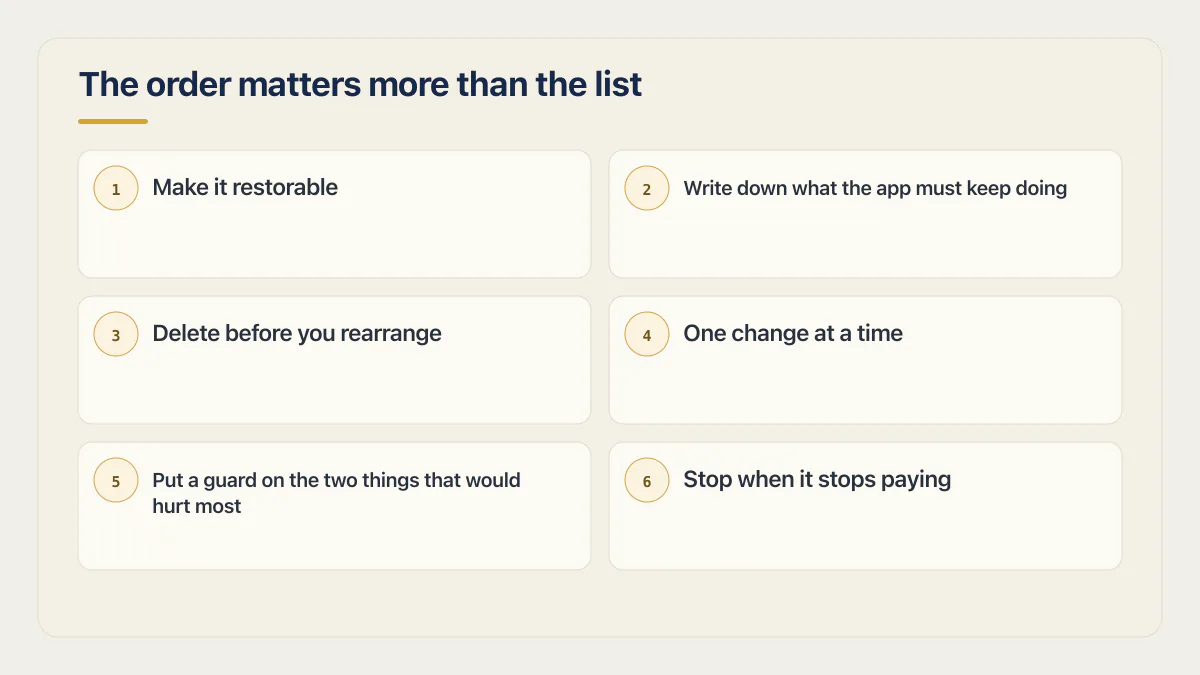
The order matters more than the list
Every list on this topic contains roughly the same work. What separates a tidy-up that goes fine from one that eats a weekend is the sequence, and specifically whether the move you just made can be taken back in one click.
So order the six by how reversible each one is. Deleting a screen you can bring back from a version is cheap to get wrong. Renaming things across an app is expensive to get wrong, because the damage turns up somewhere you were not looking. Delete before you rearrange, rearrange before you rename, and never do two of them in the same change.
- 01 Make it restorable. Create a named version you can return to, and know what a restore on your builder does and does not cover.
- 02 Write down what the app must keep doing. Ten plain sentences, one per thing that must not break.
- 03 Delete what nothing uses. The half-built feature, the replaced screen, the second copy of the same page.
- 04 Change one thing at a time and check the ten sentences after each one.
- 05 Put a guard on the two things that would hurt most: the money path and the customer-data boundary.
- 06 Stop when the next change costs more than the mess does.
The state this page is written for shows up in the corpus behind this cluster: 3 of the 1,255 public posts read on 14 August 2026 describe a codebase the person who built it can no longer navigate. That is a small number in a large set, and it was the one this cluster had no page for.
One version of this problem is not covered here. If you did not build the app and are taking it over from someone else, the unknowns are the whole job and keeping evidence intact matters more than tidying anything. That first week is a different sequence on its own page.
Step 1. Make it restorable before you change anything
The first move in any cleanup is a named version you can return to. Lovable, Replit, Bolt and Base44 all keep a version history. Lovable, Replit and Bolt state that a restore leaves your data alone, and Base44 does not document either way, so assume a change that deletes records is not undone by going back a version.
| Builder | What the restore surface is called | What a restore brings back | What it does not bring back | Source, read 15 August 2026 |
|---|---|---|---|---|
| Lovable | Version history, plus a Bookmarks tab. The docs say “Every change Lovable makes to your project creates a version automatically." | "Reverting restores your project’s code only, and redeploys your app’s edge functions to match.” | Your data. “If messages after that version added records, changed data, or ran migrations against your data, reverting the code does not undo those data changes.” | Lovable version history |
| Replit | Checkpoints. “A checkpoint is a complete snapshot of your Replit App state created automatically by Agent at key development milestones.” | Project files, Agent conversations, dependencies, packages and runtime configurations, and editor settings. Your development database as well, but only if you select Database under the additional rollback options. | Your database, unless you asked for it: “By default, rollbacks do not change your database.” Restoring the production database “is not performed automatically through this rollback feature”. A rollback also “removes all changes made after that point, including code edits”. | Replit checkpoints and rollbacks |
| Bolt.new | Version history, opened with the View history button and restored with Restore this version, described as “a timeline of changes, letting you see how your project has evolved and pick out the exact point you want to return to”. | The project as it stood at the point you pick on the timeline. | Either database. “Restoring to an earlier project version will not change your current Bolt or Supabase databases.” | Bolt rollback and backup |
| Base44 | The Revert icon under a chat message, and Version History behind the clock icon in AI chat. | The docs say the Revert icon will “roll your app back to the state it was in just before that change”, and that “any changes made after that point are also undone”. | Not documented. As of 15 August 2026 neither the troubleshooting page nor the chat documentation says whether a revert touches your records. Restoring data is a separate feature: data version history, on the Elite and Enterprise plans only, keeping 7 days and 30 days respectively. | Base44 troubleshooting and AI chat |
Every platform line in that table was read from the vendor’s own documentation on 15 August 2026 and was not run in an account, so check the wording inside your own project before you rely on it. These surfaces change quietly. A restore control can also refuse outright, and the documented reasons a revert is unavailable, with what to do about each, are covered separately.
Read down the last two columns and the exception stands out. Only Replit will bring a database along with the code, only your development one, and only when you select that option before the rollback. Lovable and Bolt state plainly that a restore leaves your database alone. Base44 does not say either way, and keeps data restore in a separate feature on its two highest plans.
A version restore protects the code you are about to change. It does nothing for the rows you are about to delete.
Two things to do today, while the app still works. First, create a marker you can find again: Lovable has bookmarks for exactly this, Replit and Bolt both let you pick a point on the timeline later, and on Base44 the marker is the chat message itself, so make the last known-good change one you can recognise in a list. Second, if your builder syncs to GitHub, push before you touch anything. Lovable’s documentation describes the sync running both ways, “Changes made in Lovable sync to GitHub” and “Changes pushed to the active GitHub branch sync back into Lovable”, on one branch at a time, which makes the repository a second copy of the code and a second way back.
The code half is the easy half. The data half needs its own proof, and prove the restore works before you need it is the drill for that. If your app runs on a single database that you and your customers share, everything below happens on the live thing, which changes what counts as a safe move: what it means to edit the live thing is worth reading before step 3.
One more restore point sits outside the builder. The release running at your host has its own history and its own way back, in a different dashboard from the one you have been prompting in, and it is worth finding before the day you need it.
Step 2. Write down what the app must keep doing
A cleanup needs a target before it needs a plan. Write ten plain sentences describing what the app must still do when you are finished. A customer can sign up. A payment goes through. One customer cannot see another customer’s data. That list is what you check after every change in step 4.
Write each line as something you can do in the app yourself, in under a minute, and see the result. “The confirmation email arrives” works. “The email service is configured correctly” does not, because you cannot check it without reading something.
Treat ten as the ceiling. A list of forty lines is a feature inventory, and you will stop checking it by the third change. Keep the lines where being wrong costs you money, a customer, or a phone call, and put login, payment and the customer-data boundary on the list even when you are certain nothing you are about to do goes near them.
This is deliberately not documentation. There is a full set of documents worth having for an app like this, covering what it is built on, how it deploys and what to do when it breaks, and that is a bigger job with its own page. Ten sentences in a note on your phone is the version that survives contact with a Saturday afternoon.
Step 3. Delete before you rearrange
Deleting is the cheapest kind of cleanup and the easiest to take back. Remove the half-built feature nobody uses, the screen you replaced, and the second copy of the same page, one at a time. Before the first delete, find out whether anything at all would tell you that you broke something.
This is where “how to clean up AI generated code” usually means “how to remove AI-generated code the app no longer runs”. Six months of prompting leaves a lot of it: the dashboard you abandoned, the payment flow you replaced, the settings page nothing links to. Each of those is a thing you can name and point at, which is what makes it safe to remove while you still cannot read the code.
The trap is that dead code is only harmless while it is genuinely disconnected. Something you replaced can still be wired to a route, a scheduled job, or a webhook that fires once a month. That is the same shape as a delete nobody could undo, smaller, with the same recovery problem. Ask the assistant what still refers to the thing before you remove it, and treat a confident “nothing” as a starting point.
The check that belongs in front of all of this is whether a break would be visible at all. In the AxonBuild audit corpus, 26 production-readiness reviews run across June and July 2026, one app made the point cleanly: a dashboard whose own type and lint checks were switched off at build time, while the builder pushed every edit straight through to its host. Nothing failed because the one automatic check a push had was switched off, and there were no tests behind it. Nothing in that setup would have reported a break, which is why this question comes before the first delete rather than after it.
If you can run a command, or you have someone who can, how to see which files are actually costing you turns this into a shortlist instead of a memory exercise. If you cannot, the version above is the safe one: only remove things you can name.
Step 4. One change at a time, and check the list
The loop for every change is four moves: mark a restore point, make one change, check the ten sentences from step 2, then keep it or go back. One change means one thing rather than one session of tidying, because a restore can only take back the whole batch.
- 01 Mark or note the current version, so you know exactly where back is.
- 02 Ask for one change, named in one sentence, and say which parts of the app must not be touched.
- 03 Open the app and walk the ten sentences from step 2, including the ones the change had nothing to do with.
- 04 Keep it, or restore the version you marked in move one. Do not try to fix a bad change with another change.
The fourth move is the one people skip, and Base44’s own troubleshooting page is blunt about why that goes wrong: “Rolling back your app by ‘asking’ the AI in chat never actually undoes prompt changes…”. The chat remembers the conversation, not the state of your app. Undo lives in the restore surface from step 1, and asking for the previous behaviour back usually produces a third version that resembles neither.
How you ask matters more than which assistant you ask. One job per request, stated as a change rather than a goal, with the off-limits areas named in the same message, especially anything touching signing in, payments or customer records. Never send “clean up the codebase” as a single prompt: that is an unbounded number of edits sharing one restore point, and no ten-line list will localise them. Whether an AI can reliably review or repair its own output is a real question, and a separate one from how to ask it for a single safe change.
If what you are hitting is specific to your builder rather than general mess, a Base44 app running into limits, a Replit agent that keeps rebuilding the same thing, a Lovable front end sitting on a backend nobody has looked at, that is a per-tool question with a per-tool answer.
Step 5. Put a guard on the two things that would hurt most
Two guards, not twenty. The path that takes money, and the boundary that keeps one customer out of another customer’s data. A guard is something that fails loudly when it breaks, so that you find out before a customer does. A coverage number is not a guard.
For the money path, the guard is an alert you actually receive when a payment fails or a webhook stops arriving, sent somewhere you read. For the data boundary, the guard is the check you run yourself: sign in as a second account, from a second browser, and try to reach the first account’s data. If you can, that is the finding, and no amount of tidying elsewhere is worth doing first.
Both guards exist because an app can fail while telling you it succeeded, which is the reason a green check that proves nothing is worth knowing about before you start changing things. What to test beyond those two, and in what order of consequence, is a bigger subject with its own page.
Step 6. Stop when it stops paying
Stopping is a step. Stop when the next change costs more attention than the mess is costing you, and stop immediately in three cases: the data model itself is wrong, the app is broken right now and the assistant cannot fix it, or you can no longer say what the app does.
That third one has a feeling attached to it, and it usually arrives before the evidence does. Someone in the same corpus wrote: “It has gotten so sloppy, that I almost want to restart…”. Wanting to restart is a signal worth taking seriously, and also the most expensive instinct on this list, which is why it belongs at the end rather than the beginning.
Each of the three exits leads somewhere different, and none of them leads to more tidying:
- The data model itself is wrong. If customers, orders and payments are stored in a shape that no longer matches how the business works, every tidy-up on top of it is decoration. That is the rebuild-or-repair decision, with numbers in it.
- It is broken right now and the assistant cannot fix it. Different starting state, different page. This page assumes the app works; when it does not, the first job is getting back to working.
- You cannot say what the app does any more. Nobody can safely clean up an app they cannot describe. That is the point where someone reads the code and tells you what is in there, which is a job rather than a step.
If you stopped somewhere in the middle of this list, that is a reasonable place to land, and it is worth knowing what the rest of it costs to hand over before you decide anything. The price question has its own answer and its own page. To size the mess before you decide, the page on tech debt covers how to measure it without reading code and what to pay down first.
Common questions about cleaning up a vibe-coded app
How do you clean up vibe coding?
In this order: create a restore point you can name, write ten sentences describing what the app must keep doing, delete what nothing uses, make one change at a time and check the ten sentences after each, put a guard on the money path and the customer-data boundary, then stop. The order is set by how easily each move can be undone, so a mistake in step 3 costs less than a mistake in step 5.
The sequence assumes the app currently works. If it is broken, the order changes and getting back to a working state comes first.
How do I remove AI-generated code my app no longer uses?
Remove it by name, one item at a time, from a marked restore point. The safe candidates are the ones you can describe without reading any code: the screen you replaced, the feature you abandoned halfway, the second version of a page that exists because a prompt built it twice. Ask the assistant what still refers to each one before it goes, then delete one item, check your ten sentences, and keep or restore.
What makes this the cheapest cleanup is that a code restore fully undoes it, and that stops being true the moment a delete also removes records. If you or someone helping you can run a command, how to find unused code in a repo covers finding dead files, unused exports, unused packages and copied logic, and removing them one commit at a time.
Can I just ask the AI to clean up the code?
Not as one instruction. “Clean up the codebase” produces an unbounded set of edits across files you cannot review, with a single restore point covering all of them, so the only options afterwards are accept everything or lose everything. Asking for one named change at a time keeps every edit inside a restore you can use.
There is a separate question about whether an AI can reliably review or repair its own output, and it deserves its own answer rather than a line in a cleanup guide.
Will reverting to an older version delete my customers’ data?
Reverting the code does not usually touch your data at all, which is the opposite worry from the one most people have: your records stay as they are, including changes you were hoping to undo. Lovable states that reverting restores code only and “does not restore or roll back your database data”. Bolt says restoring “will not change your current Bolt or Supabase databases”. Replit says rollbacks do not change your database by default, and will include the development database only when you select that option. Base44’s documentation does not address it, so assume your data is not covered until you can confirm otherwise.
The practical consequence: if a change added, edited or deleted records, going back a version leaves those record changes in place. Documentation read 15 August 2026.
How long does cleaning up a vibe-coded app take?
Nobody can give you a real number without seeing the app, and the timelines published on this topic are estimates for a company delivering the work, not for an owner doing it in evenings. Chudovo says it rarely takes less than a few weeks for a small prototype, and one to three months of part-time attention for anything larger. Those figures were read on 15 August 2026 and describe its own delivery.
The more useful measure is per change rather than total. However long one change plus a walk through your ten sentences takes you, the size of the job is that number times however many changes you have, and you can stop after any of them.
Should I clean it up or start over?
Clean it up if the app does the right things in roughly the right shape and the problem is that the inside has become hard to navigate. Consider starting over only when the data model itself is wrong, meaning the way customers, orders or payments are stored no longer matches how the business actually works, because everything you tidy sits on top of that shape. Wanting to restart because the code is embarrassing is common and is not by itself a reason.
That decision deserves a real comparison rather than a mood, and it has its own page.
What should I not touch?
Anything that handles signing in, taking money, or deciding which customer sees which data, unless that is the one change you are making and you have marked a restore point first. Those three are where a plausible-looking edit does damage that nothing in the app shows you, and where the check is a second account rather than a glance at the screen.
Also leave alone anything you cannot name. If you cannot describe what a thing does in one sentence, you cannot tell whether removing it broke something, and the ten-sentence list will not catch it either.
If you have a working app built with these tools and need it ready for real customers, this is what we do.
Built it with AI. Now it has to hold up for real customers.
The Production Hardening Sprint takes the app you already have and builds the production foundation underneath it. Authentication and access rules, payments that stay consistent, error handling, monitoring, backups, automated tests and a documented handover. Our engineers work inside your existing codebase for ten working days. All 123 deliverables are included, and you get the evidence for each one.
See the Production Hardening Sprint →  $2,500 fixed price · 10 working days · One codebase